How to Convert VOB to MKV without Losing Quality (Free & Online Incl.)


Summary: Converting VOB to MKV is one of the most effective ways to keep full quality and make them easier to play on different devices. For lossless extraction, you can adopt EaseFab Video Converter Ultimate and MakeMKV for help. For compressed files, follow up with the free tools like HandBrake or VLC. If you only have one or two small files and don't want to install software, you can use a browser-based online VOB to MKV converter like CloudConvert.
VOB is a container format commonly used for DVD-Video media so often the VOB files we see are saved in DVD Video_TS folders. Also, there are streaming VOB files online that have complete data and information for playback. Chances are these DVD VOB files, encrypted or unencrypted, pose a format incompatibility issue when you try to have them played on your Windows computer, Mac,or other platforms. In this case, converting VOB to MKV is a good choice since MKV the format that can preserve lossless or high quality and provide better compatibility.
So, how to convert a VOB file to MKV without quality loss? Is there a free or online converter that can get the job done? If you are on the hunt for these, you've come to the right place. In this article, we'll introduce 6 verified VOB to MKV converters that you can try with confidence. We've rigorously tested each tool to provide you with a clear understanding of their capabilities, helping you choose the best solution for your needs.
Top 6 Ways to Convert VOB to MKV with Lossless or High Quality
Top 6 Ways to Convert VOB to MKV with Lossless or High Quality
There are a variety of tools that can help you convert VOB to MKV in the market. To help you pick, we've tried out ten of the best choices. Each one works a bit differently and is good for different kinds of users. In this part, we'll explain how well they work, how easy they are to use, and if they're worth your time. This will help you decide which one is right for you, and turn your VOB files into MKV files without any fuss.
Method 1. Repack or Re-encode VOB to MKV with EaseFab Video Converter Ultimate
EaseFab Video Converter Ultimate is overall the best VOB to MKV converter for Windows and macOS users. It can not only repack a VOB files to a lossless MKV file in seconds without transcoding, but also it can convert multiple VOBs to MKV while significantly reducing their size – an impressive 40% to 90% reduction without compromising quality. With the support for Nvidia, Intel, and AMD GPU acceleration technologies, this software can convert VOB to MKV at a stunning pace, up to 5 times faster than other alternatives.
As an all-in-one media converter, EaseFab Video Converter Ultimate can handle any protected Blu-ray/DVD discs, ISO image files, folders, VOB, MKV, and any other video and audio files. It boasts the ability to transform them to a wide array of formats, including, MKV, MP4, HEVC, MOV, AVI, WMV, FLV, MP3 and more and offers over 200 presets optimized for various mobile devices, TVs, and web platforms. Moreover, you're allowed to select the desired subtitle/audio tracks, add subtitles, crop, trim and edit the videos before conversion.
Free download and install EaseFab Video Converter Ultimate on your PC or Mac. After that, you can follow the steps below to convert VOB to MKV with lossless or high quality.
Guide: How to Repack or Re-encode VOB to MKV using EaseFab Video Converter Ultimate
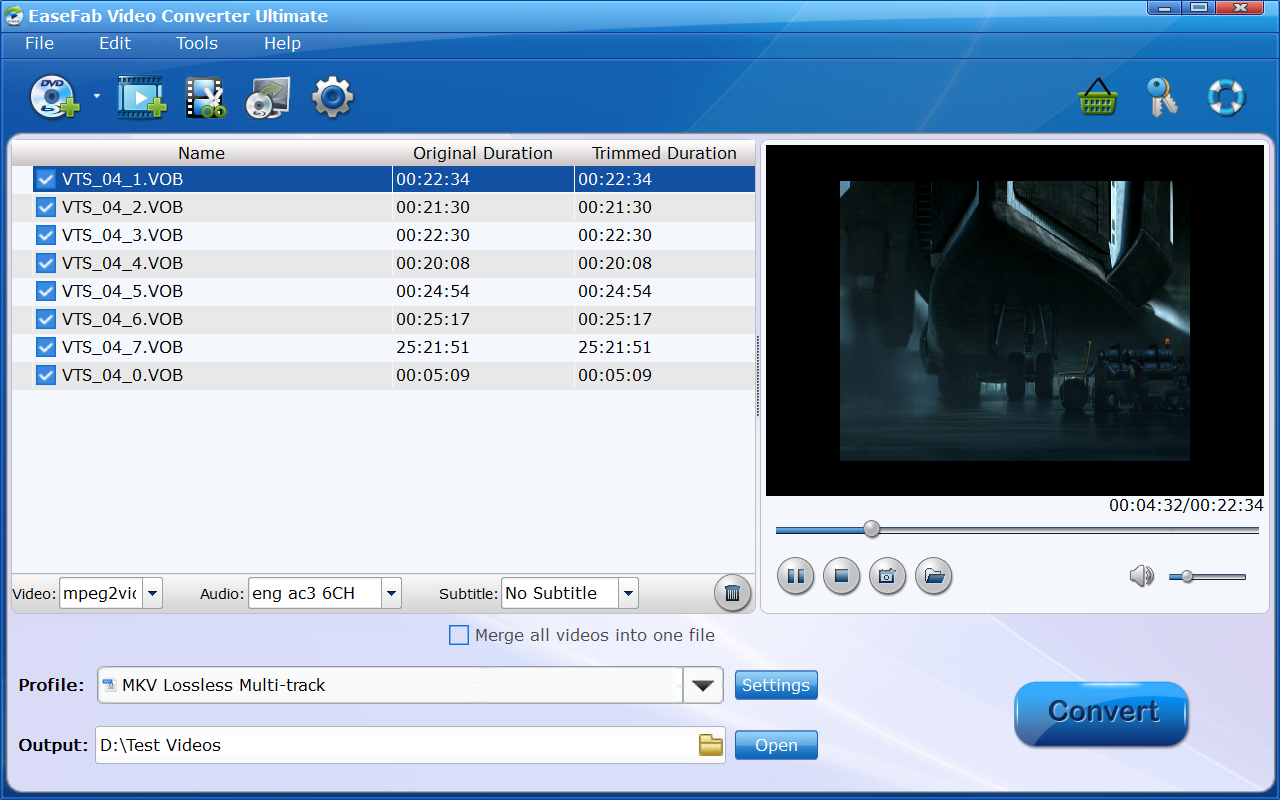
Step 1. Load VOB files
Launch this VOB to MKV converter on your PC or Mac, click "Add Video" button to import the VOB videos. Batch conversion is supported, so you can import multiple VOB files to convert at one time. To combile multiple VOB files into an MKV video, enable the "Merge all videos into one file" on the lower part of the main interface.
Note: If your VOB files are in a VIDEO_TS folder folder, you can drag the whole VIDEO_TS folder directly to the program, or open the VIDEO_TS folder, and pick the VOB files one by one. There are various VOB files in VIDEO_TS folder including adverting and trailers mostly main video file with the name VT_01_1.VOB. If not, select other big files in size.
Step 2. Select Lossless MKV or Common MKV Profile
You can use this software to repack VOB to MKV or re-encode VOB files to MKV for reducing file size with quality well-balanced.
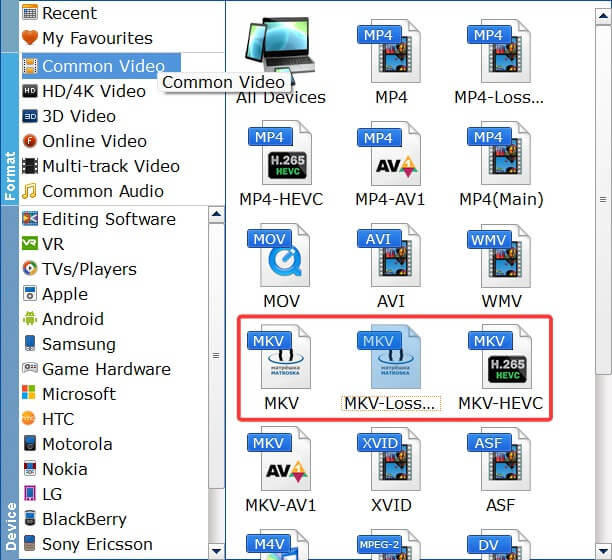
For repacking VOB to a lossless MKV file, simply select "MKV-Lossless" profile from "Common Video" category. Or you can move mouse cursor to Multi-track Video category and select MKV Lossless Multi-track as the output format.
For re-encoding VOB to a MKV file, simply select MKV (codec: h.264) or HEVC MKV as the output profile.
Tech details:
1. To get the best possible output quality and smallest file size, convert VOB to HEVC MKV. It has 50% smaller size at the same quality.
2. In addition to selecting HEVC MKV as the output format, flexible options are offered to further reduce the size of the encoded MP4 video. Click the Settings button beside the profile and enter into the parameter settings page. A slew of other variables such the video/audio codecs, pixel dimensions, frame rate, bit rate, audio sampel rate, etc. will help convert and compress a VOB file to a smaller MP4 file.
Step 3. Start VOB to MKV Conversion
Click the "Folder" button in the "Output" bar to select a folder to store the converted MKV video.
Finally, you can click the big "Convert" to start converting VOB to MKV with lossless or high quality with EaseFab Video Converter Ultimate. This software will finish the VOB to MKV remuxing task within 2 minutes while the re-encoding will take about 5 minutes.
Method 2. Repack VOB to MKV Free and Lossless with MakeMKV
MakeMKV is a renowned and free tool for converting Blu-ray and DVD discs into MKV files without re-encoding. It can also "repack" the VOB video to MKV file in seconds without re-encoding the file. The software runs on Windows, macOS, and Linux, and is free to use while in beta (with a license key that requires periodic renewal). However, it supports only MKV output, lacks disc menu support and post-conversion editing features, and does not offer GPU acceleration. Due to its decryption capability, the legality of using MakeMKV may vary by country or region.
Guide: How to Repack VOB to MKV with MakeMKV
Step 1. Download and open MakeMKV.
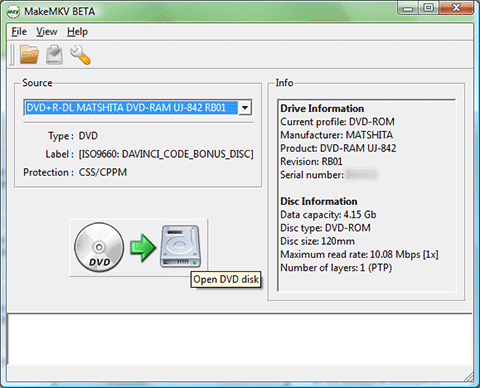
Step 2.Insert your DVD or drag your .VOB files directly into the program.
Step 3.Select the specific titles or files you want to convert.
Step 4.Click the Make MKV button on the right side of the screen.
Method 3. Re-encode VOB to MKV Free with HandBrake
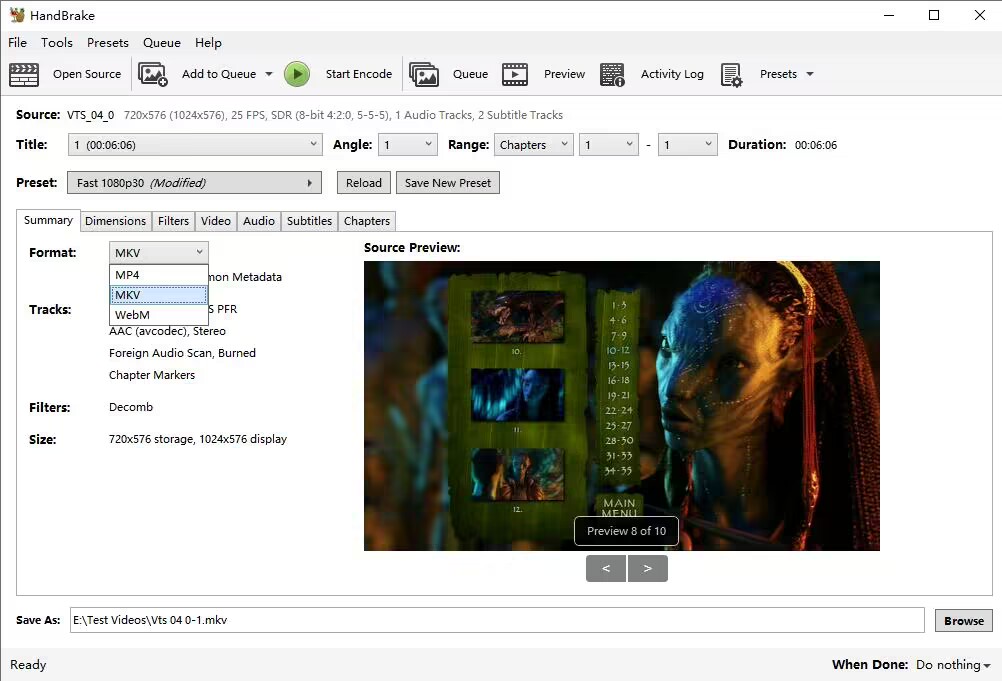
Handbrake is enormously popular as a free and open-source video transcoder software working on Windows, Mac, and Linux. It not only functions as a video converter but also a stunning DVD ripper for unprotected DVD sources. That means whether your VOB files are stored at the root of your DVD within the Video_TS folder or saved in your computer hard drive separately, Handbrake will help to transcode these DVD VOB files into MKV, MP4 or WebM format easily, as long as they are unencrypted. For CSS protected DVD VOB file, you need to install libdvdcss to do the task.
On top of that, Handbrake offers buckets of other useful features under the hood, ranging from encoding settings, adjusting frame rates, changing codecs, applying effects, cropping large video frames, etc. These features come at the cost of user friendliness to some degrees. So if you are a beginner, they may intimidate you. But with a little bit of a learning curve, you will be fond of using the video encoder.
Overall, Handbrake will re-encode your VOB video and make file size Handbrake will re-encode your video to make the file size much smaller, though it takes longer to process.
Guide: How to transcode VOB to MKV videos using Handbrake
Note: Before you start, you should know that Handbrake can only handle videos/DVDs without DRM. If the VOB video is ripped from an encrypted DVD, the VOB video may contain copy protection. Handbrake can't convert encrypted VOB videos to MKV. You can download the libdvdcss on your Mac and try again.
Step 1. Download and install Handbrake on your computer.
Note: Windows 10 is the minimum version supported in Hanbdrake 1.4.0 or above. And Microsoft.Net 5 Desktop Runtime is required for successful installation.
Step 2. Click File to open a single VOB video from the computer. You can also click Folder to open more files located within the folder.
Step 3. Under the Summary tab, choose MKV from the Format drop-down list. Moreover, you can click the Video tab to further set the MKV encoder such as H.264 and H.265. You can find and select the options to customize the MKV encoding settings.
Step 4. Click Save As to set a new destination folder to save the converted MKV file. If you're converting multiple VOB files to MKV in a batch, you need to click Add to Queue on the top menu bar and select all the VOB videos.
Step 5. Next, click the Start Encode or Start Queue icon at the top side and Handbrake will start to convert the VOB videos to MKV.
Method 4. Free Convert VOB to MKV with VLC
As the most powerful and acclaimed media player, VLC can not only play VOB and more files lightly, but also do many video transferring jobs, including converting DVD VIDEO_TS VOBs into MKV. Although VLC is left behind by other desktop video converters in more complex steps and slower conversion speed, it's still an ideal choice if you just need to convert multiple VOB titles to MKV once in a while.
Guide: How to convert VOB to MKV using VLC
Step 1. Download, install and launch VLC media player on your computer.
Step 2. In the VLC menu bar, click on "Media" and then select "Convert/Save".
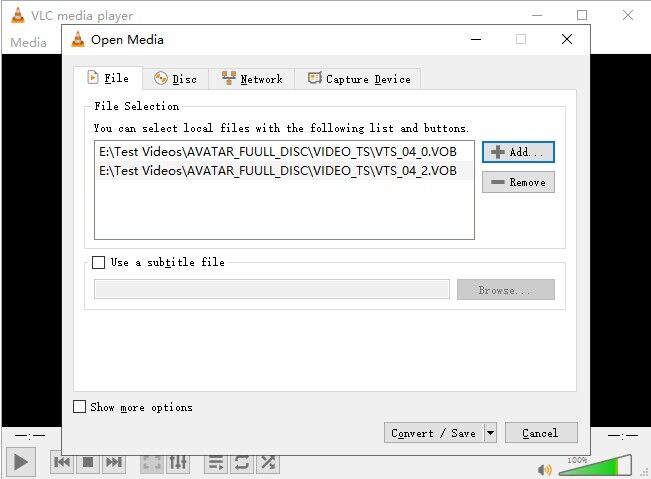
Step 3. In the "Open Media" window, select the "File" tab. Check the "+ Add" button to choose the VOB file(s) you want to convert. Then, click on the "Convert/Save" button.
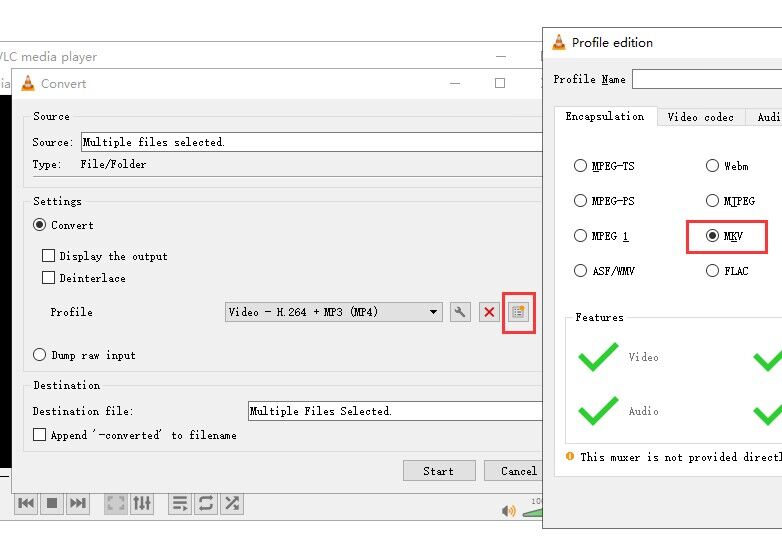
Step 4. In the "Convert" window, select the MKV format as the desired output format. If you cannot find MKV profile from the drop-down menu of Profile, click the "Create a new profile" button and then choose MKV under the "Encapsulation" tab. You can also adjust the video and audio settings if needed.
Step 5. Click on the "Browse" button next to the "Destination file" field and select the location where you want to save the converted MKV file.
Step 6. Click on the "Start" button to begin the conversion process. VLC will start converting the VOB file to MKV format.
Method 5. Convert VOB to MKV Free Online with CloudConvert
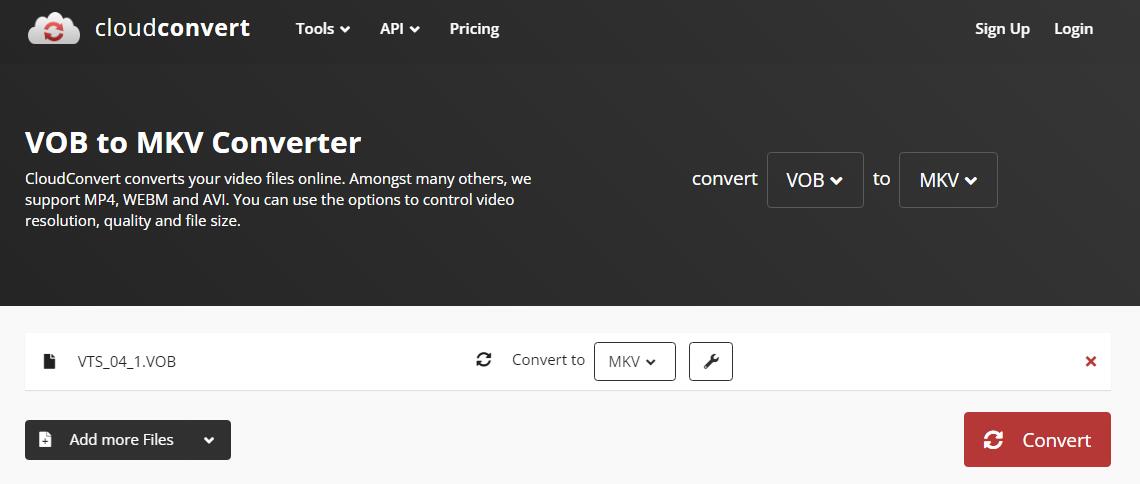
If you don't want to download additional software on your computer, there are some online VOB to MKV converters for you. Take CloudConvert for example, this tool can help convert multiple VOB files to MKV in batch. It is totally free with limited number of conversions each day - up to 25 file conversions per day, as long as the file is no bigger than 1GB. Subscriptions starts from $9 per month for larger files and 1000 conversion minutes.
There is something specials need to be notified: CloudConvert relies on internet connection, which can be slow while uploading a VOB file, since it is nearly 1GB, reaching the max file size limit of CloudConvert. And make sure the VOB files you are going to convert is unencrypted.
Guide: How to convert VOB to MKV with CloudConvert online
Step 1. Copy and paste https://cloudconvert.com/vob-to-mkv, open it in your browser.
Step 2. Click big red Select File button, then you can upload VOB files from your local computer, Google Drive, Dropbox, or One Drive. You can add maximally 5 VOB files at a time.
Step 3. Wait for uploading and click Convert button. It will take a few minutes to turn vob files into mkv, depending on your internet connection.
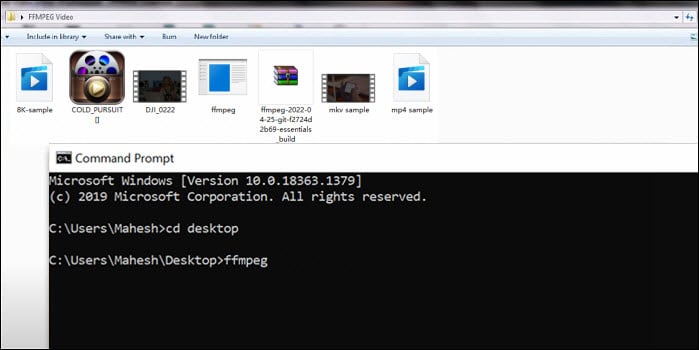
5. Convert VOB to MKV Free using FFmpeg
FFmpeg is a free and open-source command line tool. It's very flexible to handle different video tasks. FFmpeg supports remuxing VOB to MKV losslessly without losing quality. It can also help you compress VOB to MKV H.264, H.265 for a smaller file size and combine multiple VOB files into one MKV video at different quality settings, encoder parameters, etc. using various FFmpeg lines. This free VOB to MKV converter is versatile and powerful but the downside of FFmpeg is the steep learning curve, which may be daunting for beginners.
Guide: How to free convert VOB to MKV using FFmpeg?
Step 1: Go to the official site of FFmpeg at https://ffmpeg.org/ and download the zip file on your computer.
Step 2: Unpack the zip filex, extract the the FFmpeg.exe and save it to the same folder where you store the VOB videos.
Step 3: In the folder where the VOB and the FFmpeg are, hold down the shift key and right-click the empty space. Select Open command window. Then you need to enter the command lines for VOB to MKV conversion and hit Enter. Below are some examples:
● Copy VOB to MKV without losing quality: ffmpeg -i your_VOB_file.VOB -c:v copy -c:a copy output.mkv
● Convert multiple VOB to MKV H.265: ffmpeg -i "concat:VTS_01_1.VOB|VTS_01_2.VOB" -vcodec libx265 new-video-h265.mkv
● Combine VOB with cat *.VOB > combined.vob then encode with ffmpeg -i combined.vob -c:v libx264 -crf 10 -vf "yadif; scale=1620:1080" -c:a aac -b:a 448k -metadata title="Movie name" converted.mkv
Final Words
Now you know how to convert a VOB file to MKV using these programs. As always, these applications have their strengths and weaknesses. If you have large VOB files to be converted and would like batch VOB file conversion, desktop programs may be you go-to solutions. If you are tired of getting and installing additional software and are on the hunt for converting a small-size VOB file to MKV only, resorting to an online way for conversion is a wise choice. But if you have some VOB files extracted from your commercial DVD disc, make sure to get a professional program with file decrypting feature.


 Sales Team: