How to Copy DVDs to Hard Drive Free and Fast: 5 Tested Tools


Summary: Direct file copying for homemade DVDs to hard drive is possible, but not recommended for commercial movies, as it fails to handle copy protection and often result in unplayable files. For commercial discs, you need ripping software like EaseFab DVD Ripper, MakeMKV, HandBrake, etc. to convert the DVD into standard digital formats like MP4 or MKV that can be saved to your PC hard drive or an external hard drive.
Table of Contents
Copying DVDs to hard drive can not only help keep your physical movie collection safe from scratches, loss, or the effects of age, but also it can embrace the flexibility of the disc playback. For a homemade DVD, you can simply copy the the VIDEO_TS and AUDIO_TS folders directly to your hard drive, but many TV or mobile devices cannot play the folder directly. For most commercial movies DVDs, simple drag-and-drop will not work at all due to built-in encryption. That's why you need a ripping tool to digitize and rip the DVDs first, and then transfer the file to hard drive.
We find most users prefer ripping DVDs into digital formats like MP4 or MKV for easy storage and playback, while some users want to save DVDs as ISO files instead so that they can keep the original menus, trailers, and interactive features. In this guide, we have tested 5 reliable tools (free and paid ones included) that cover both options to help you transfer both homemade and copy-protected DVDs to your hard drive on Windows 10/11 or Mac.
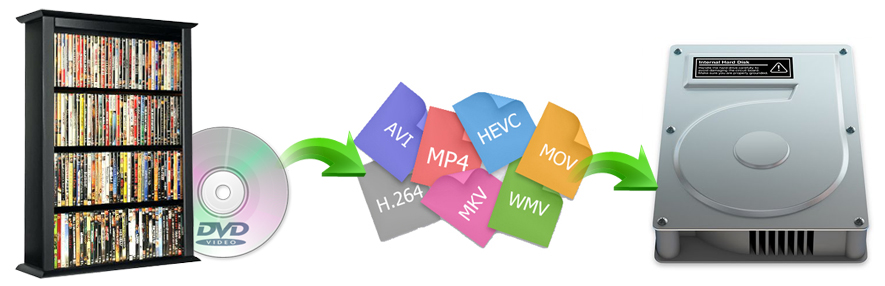
How to Copy Home-Made DVDs to Hard Drive Directly
For a homemade video DVD with no copy protection, you can do a direct copy by using the built-in File Explorer (Windows) or Finder (Mac). Here are the steps:
Step 1. Insert the DVD into your computer's DVD drive.
Step 2. Open the DVD drive in File Explorer (Windows) or Finder (Mac). Here you will see folders like 'VIDEO_TS' and 'AUDIO_TS'.
Step 3. Select the files or folders you want to copy.
Step 4. Drag and drop them to a location on your computer or your external hard drive that connected to your computer.
However, direct copying for unprotected DVDs is not recommended by us. It might lose data, especially during interruptions. Moreover, the digital copy may not be played on your computer or TV due to format compatibility issues.
How to Transfer Protected DVDs to Hard Drive (Rip & Convert)
Commercial DVDs use copy protection to prevent a normal file copy. If you've tried to copy the content directly, you will find the DVD empty, the files corrupted, or unplayable. When we extract the video_ts folder from a copy-protected DVD to a hard drive, the file seems to end midway with an error message.
Therefore, for store-bought or copy-protected movies, you may have to got disc-ripping software to decrypt, rip and digitize them. For easier playback, the practical solution is to convert DVD to digital formats like MP4, MKV, etc. That gives you a single movie file that is easier to store, organize, and play. For pure digital archiving without compression, you can save them as ISO files, folders or lossless MKV files. Both methods require a reliable DVD ripping or DVD backup tool. In this section, we've tested and handpicked 5 options to help you copy DVDs to hard drive easily and quickly.
Our Top Picks for Copying DVD to Hard Drive
We selected the top three DVD ripper software options from my testing based on their decryption capabilities, ripping speed, and ability to convert DVD to MP4, MKV, and other digital video formats. You can choose one of them according to your specific needs:
- Best for Speed & Quality: Use EaseFab DVD Ripper to rip commercial DVDs to computer as MP4/MKV in minutes with original quality.
- Best for Lossless Backup: Use MakeMKV if you want a perfect 1:1 uncompressed copy and have plenty of hard drive space.
- Best Free Tool: Use HandBrake if you are ripping non-encrypted home videos and don't mind slower processing speeds.
#1. Copy DVD to Hard Drive with EaseFab DVD Ripper
EaseFab DVD Ripper is a fast and reliable tool to rip DVDs to hard drive as digital files on both Windows and Mac. It can cope with both homemade DVDs and commercial DVDs with advanced copy protections such as CSS, APS, Sony DADC, and 99-title discs. This tool can convert DVD discs into over 500 video and audio formats, such as MP4, MKV, MP3, and AAC. It supports modern, high-efficiency codecs such as H.265 (HEVC) and even AV1, letting you digitize large collections while balancing file size with visual quality. Besides that, it can also copy DVDs to your external hard drive as ISO images, lossless MKV files or folders without losing any quality.
We tested EaseFab DVD Ripper 5.9.2 on Windows 11, it ripped a 6.84GB disc (AVATAR) into a high-quality 2.2GB MP4 file in about 5 minutes. For backing up DVD to ISO and lossless MKV, it took about 2~3 minutes to finish the job while retaining the original quality. The UI also felt clear: it auto-detected and loaded sources smoothly. All settings including Title, Chapter, Audio, Subtitle, and Video Editor were clearly surfaced, so we could find them quickly. We placed EaseFab in the first position due to its ease of use, highly customizable options, superior output quality, and fast ripping speeds.
Supported OS:
- Handle region codes and latest copy protections.
- Rip DVD to hard drive in 500+ formats, MP4, MKV, ISO, VOB, Video_TS folder, etc.
- Rip all or partial titles, chapters, subtitles, and audio tracks.
- Utilize GPU hardware acceleration for faster DVD ripping.
- Provide video editors for cropping, trimming, adding watermarks, and more.
- Enable batch processing with one-click operations.
- It isn't compatible with Linux.
- The free version is limited to 3-minute exports.
[Tutorial] How to rip DVDs to hard drive with EaseFab DVD Ripper
The step-by-step guide takes Windows version for an example, Mac version shares the same process.
Step 1. Download EaseFab DVD Ripper on your Windows or Mac by clicking on either of the green buttons above. After that, install it on your computer.
Step 2. Insert the DVD disc into your computer's DVD drive or an external USB DVD drive. Launch EaseFab DVD Ripper, click Load DVD to add the DVD files to the program. All loaded files will be displayed on the left item bar. You can also load ISO, Video_TS folder to this program.
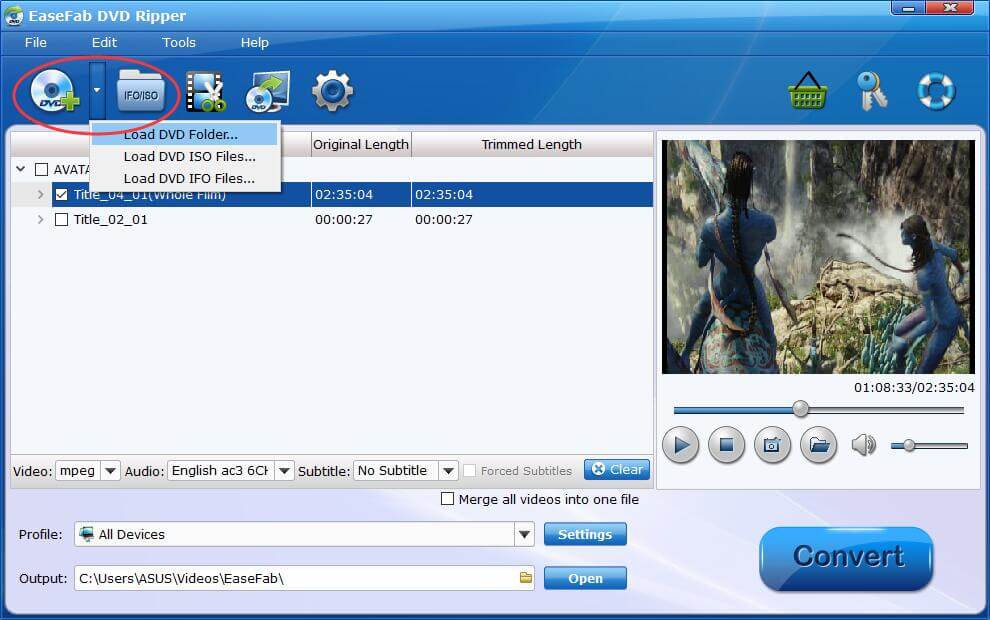
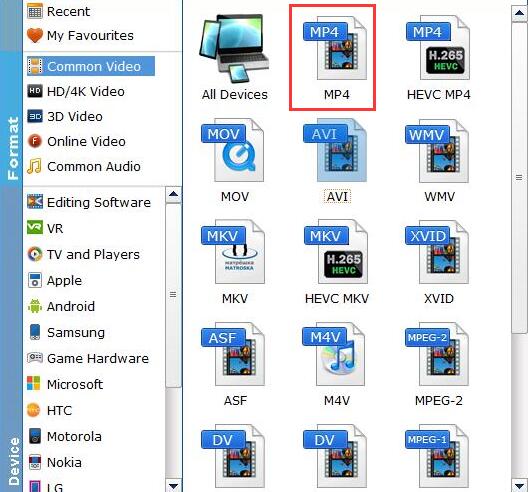
Step 3. On the Profile panel, there are over 500 profiles including popular formats and device-specific presets. You can choose to rip DVD to any digital files for furhter copying to hard drive. Below are some suggestions.
① If you want to copy DVD sto external hard drive to play on TV, LG/Samsung TV, PS5/4, Switch, Xbox One, PC, Mac, and other devices, you can convert DVD to MP4 file format for its wide compatibility, good quality, and small file size. Just go to "Common Video" category and select "MP4" as the output format. You can also select AVI, M4V, MOV, MKV etc. depending on the use of the files, or say the output devices or players that will be connected to.
② If you want to copy DVDs in 1:1 ratio to hard drive without quality loss, select "Full Disc Mode: Copy the whole content of disc", "Title Mode: Copy the selected movie title" or "ISO Mode: Backup the whole disc to ISO file". These modes allows you to copy DVDs with 100% quality, all the menus, tracks, extras, etc. But you should know that the 1:1 dvd backup files will take quite a large size and make sure your hard drive has enough space.
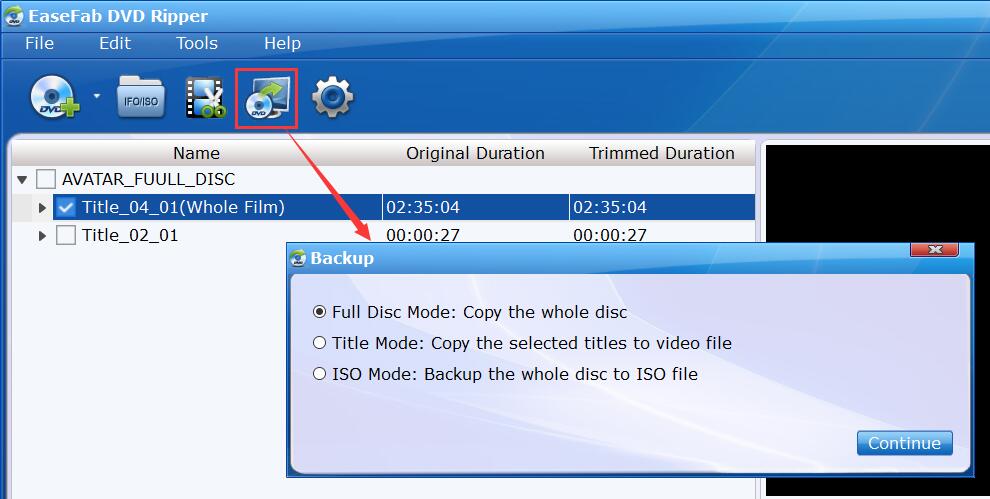
Note: EaseFab's DVD backup mode neither degrades video quality nor reduces file size (movie size stays almost the same as original 4.7GB or 8.5GB). If you have some portable hard drives that are formatted in FAT32, with restrictive 4GB file size limit, it's suggested to rip DVD to MP4 H.264, for it strikes a perfect balance between file size (around 1-1.2GB) and output quality.
Step 4. Click "Folder" button in the Output bar, and select a destination folder to save DVD back-ups. If you want to copy DVD to external hard drive to watch on TV, connect the external HDD to your computer and choose it as the destination.
Step 5. When everything is done, hit the big Convert button to begin ripping and copying DVD to hard drive. The ripping time depends on your settings and computer performance. With the support of hardware acceleration, EaseFab DVD Ripper is one of the fastest software tools to copy DVD to hard drive, running at speeds of around 300-500fps which is five or more times the speed of competitors.
Afterwards, you can sort your movies or TV shows quickly in your computer, and even transfer and watch the DVD video on your Android, iOS gadgets. If you want to transfer your DVD library backups to external HDD or SSD such as Samsung Portable SSD T5, SanDisk Extreme portable SSD, connect it with a USB cable, send your DVD copies to external drive, and then you can stream them to your laptop, PC or TV as per your needs.
#2. Copy DVD to Hard Drive in 1:1 Quality with MakemKV
MakeMKV is a straightforward tool to save DVD to hard drive as a lossless MKV file in Windows, Mac, and Linux. It can remux content from physical discs into high-quality MKV containers while retaining all audio tracks, multilingual subtitles, and chapter markers without re-encoding. DVD and AVCHD conversion is freeware, while Blu-ray conversion is shareware and can currently be unlocked with the public beta key provided by MakeMKV.
In our test with the 6.84GB movie Avatar, MakeMKV was fast, finishing the backup in under 2 minutes, - a speed that surprised me. However, be prepared for large file sizes; the output file was 6.82GB, significantly larger than the compressed MP4s from other tools.
Overall, MakeMKV is an excellent choice for 1:1 lossless backup. We recommend it for creating uncompressed backups, but it is not suitable for users digitizing hundreds of DVDs who need to conserve HDD space, as the resulting files are massive and the software lacks support for batch conversion.
Supported OS: Windows XP or later (x86/x64); macOS 10.7 or later (x64/ARM64); Linux
- Simple, one-click interface for ripping DVDs and Blu-rays.
- Lossless DVD to MKV ripping.
- Retain full audio multiple language tracks, chapters, and subtitles.
- Supports copying encrypted DVDs to hard drive.
- Available for Windows, macOS, and Linux.
- Output format limited to MKV.
- Limited customization options for output.
- No video editing options.
- No batch conversion support.
- Sometimes can't recognize newer DVD releases.
[Tutorial] How to transfer DVDs to hard drive free with MakeMKV
Step 1. Visit the official MakeMKV website and download the appropriate version of the software for your operating system. Follow the installation instructions to complete the installation process.
Step 2. Insert the DVD you want to copy into the DVD drive of your computer or an external DVD drive that connected to your PC.
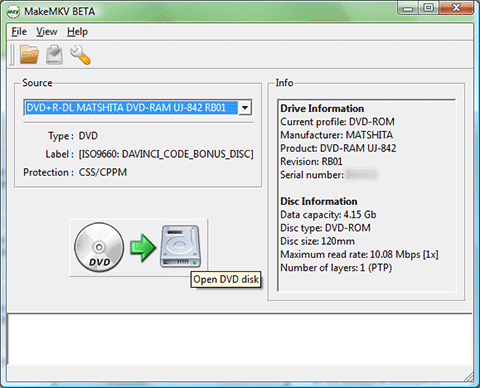
Step 3. Open the MakeMKV software on your computer. Under the "Source" section, choose the DVD drive that contains the DVD you want to copy. Then, click the "Open DVD disk" button.
Step 4. MakeMKV will display a list of titles and tracks found on the DVD. Now you need to select the desired titles or tracks that you want to copy to hard drive.
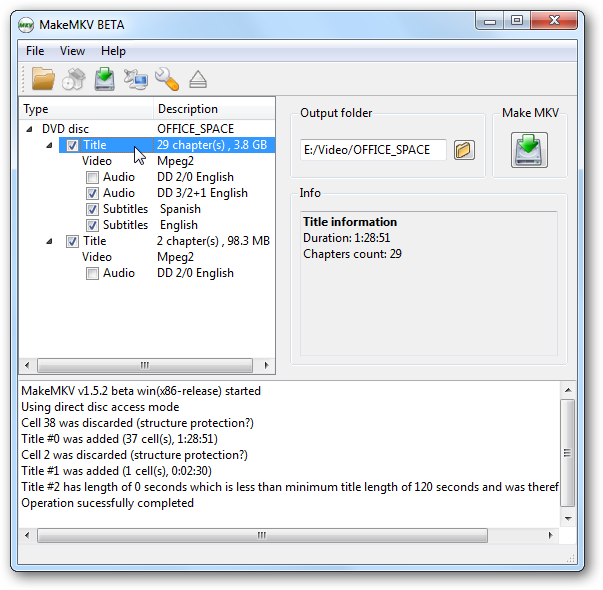 <
<Step 5. Specify the hard drive location on your computer where you want to save the copied DVD content.
Step 6. Click on the "Make MKV" button to begin the copying process. MakeMKV will convert the selected content from the DVD into an MKV file and save it to the hard drive.
#3. Copy DVD to Hard Drive Free with HandBrake
HandBrake is a popular free tool that can also be used to copy DVDs to hard drive on Windows, Mac and Linux. It can rip DVD files into space-efficient digital formats like MP4 and WebM. This software provides a range of customization options for video and audio output, making it ideal for users who need to compress large files for mobile viewing. It also utilizes Windows' native hardware encoders (Intel Quick Sync and NVIDIA NVENC) to accelerate H.264/H.265 exports with minimal adjustments.
As of October 2026 (v1.11.2), HandBrake continues to support modern codecs like AV1 and provides updated presets for different playback targets. However, it does not natively decrypt commercial DVDs, we had to manually install libdvdcss to enable it to read the Avatar disc during my testing. Performance is another drawback. It took about 28 minutes to finish the conversion task, while the output video and audio quality were also reduced.
Supported OS: Windows 10/11, macOS 10.13+, Linux
- Completely free and open source.
- Available for multiple platforms.
- Offers batch encoding and custom presets.
- Cannot rip copy-protected DVDs alone.
- Only support 3 output formats.
- Cannot rip a DVD to your hard drive in the format of ISO or DVD folder.
- It takes time for a beginner to understand.
[Tutorial] How to save DVD to hard drive free with HandBrake
Step 1. Get Handbrake Ready.
Download and install Handbrake on your Windows or macOS computer.
Step 2. Install libdvdcss for HandBrake.
Download libdvdcss.dll 32-bit/64-bit version through the VLC website.
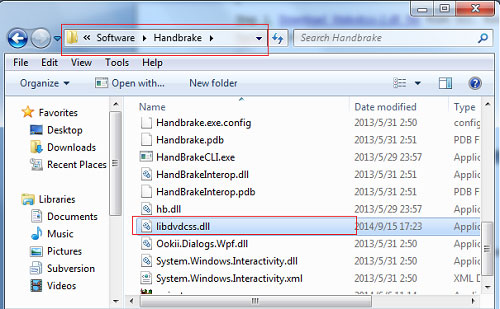
Next, you need to move the libdvdcss.dll into the installation folder of HandBrake. The process is different on Windows and Mac. For details, please go to this article How to rip protected DVD with Handbrake to learn more.
Step 3. Load Source DVD.
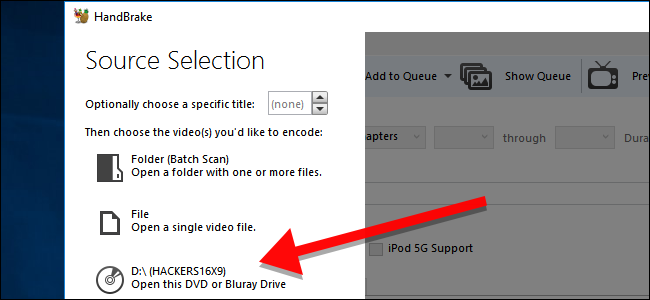
Insert the DVD disc into computer disc drive or an external DVD drive. Launch Handbrake, load the DVD from the Source Selection. It will take some time to scan the DVD titles.
Note: If the DVD you try to copy to hard drive has 99 titles or is protected with RCE, Disney X-project DRM or Sony ARccOS, you are likely to get an error message like "No valid source or titles found". In this case, I'm afraid that you'll have to resort to other professional DVD decrypters for help.
Step 4. Specify DVD Title.
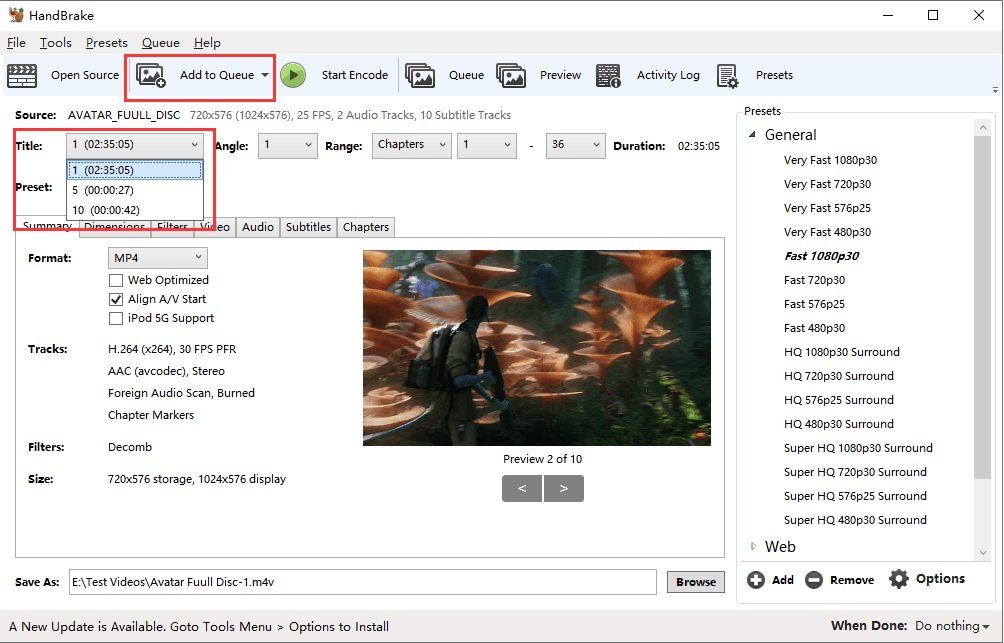
Choose the title you want to convert and copy to hard drive and adjust the angel and chapters you want to retain. The auto-selected title may be not the movie title. You'd better check it before ripping.
If you need to rip DVD with multiple titles, you can click the drop-down arrow beside Add to Queue and choose Add current, Add all, or Add selection.
Step 5. Configure output.
HandBrake DVD ripper empowers you to convert DVD to MP4, MKV, and WebM format. In addition, it offers dozens of output presets, grouped under General (1080p, 720p, 576p, 480p), Web (Gmail, YouTube, Vimeo, Discord), Devices (Android, Apple, Chromecast, Playstation, Amazon Fire, Roku, Xbox), Matroska (H.264, H.265, VP8, VP9), and Production. You can choose any one at will, or add personalized preset by clicking Save New Preset.
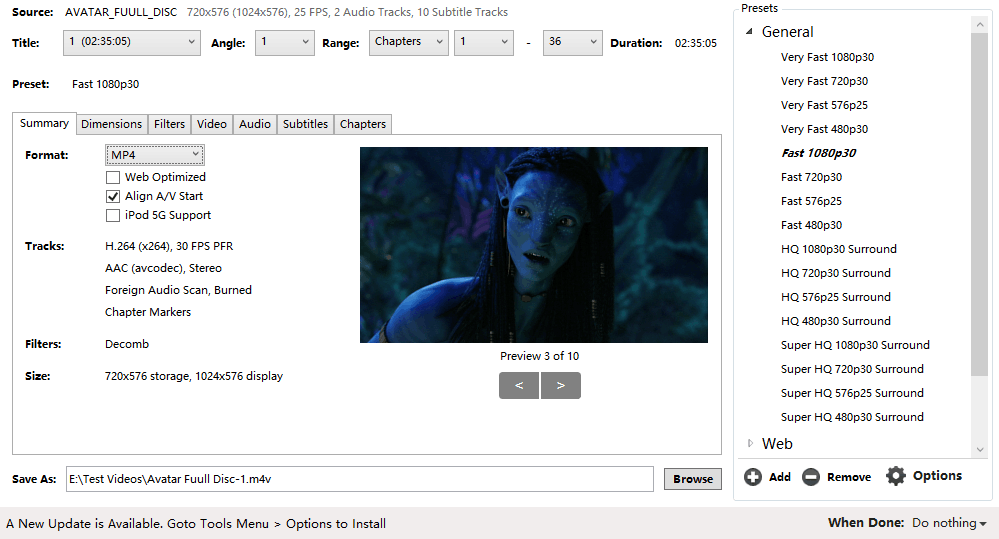
When choosing a preset, don't choose 720p and 1080p presets for DVDs. The resolution for PAL DVD is 720 x 576 (576p), while the resolution for NTSC DVD is 720 x 480 (480p). Choosing a larger preset won't make the output look better but bigger.
One more thing, "Fast" and "Very Fast" presets will sacrifice some output quality, while "HQ" and "Super HQ" presets will slow the DVD ripping speed and increase output file size.
Besides container format and preset, HandBrake also allows you to select subtitle, specify audio track, tweak video parameters like codec and framerate, set quality, and do so much more. But if you know little about those features, just keep the default settings untouched.
Step 6. Start Copying DVD to Hard Drive.
Click the Browse button to choose a folder of your hard drive as the destination and click Start Encode to begin ripping DVD to hard drive with Handbrake.
#4. Copy DVD to Hard Drive Free with VLC
VLC Media Player is a well-known open-source player that supports CDs, DVDs, and various media formats. In addition to playback, desktop VLC can also convert a DVD to digital formats like MP4, WebM, TS, MKV, AVI, WMV, MP3, and so on. for storing on hard drive or other storage devices. It offers manual control over bitrate and container settings, although many options are buried in deeper menus. Like HandBrake, it cannot export ISO image or VIDEO_TS folder, either.
VLC can easily convert home-recorded or unprotected DVDs, and it includes a library called libdvdcss that helps it play some encrypted DVDs, but it cannot strip digital rights management (DRM) or reliably rip copy-protected store-bought discs.
Overall, VLC is suitable for users who wish to rip DVDs and are comfortable with a potentially slower conversion speed. It's worth noting that VLC's conversion process may take as long as the duration of the movie itself, as VLC technically "streams" the video to a file on your hard drive. Moreover, VLC doesn't have DVD copy feature and VLC's native DVD transcoding results in quality degrading.
Supported OS: Windows XP/7/8/8.1/10/11, macOS 10.7.5+, Linux widely available via distro repos/Flathub
- 100% free and open source.
- Works on all major operating systems.
- Can rip unprotected DVDs to basic file formats.
- No ads, no bloat, and very lightweight.
- Some functions are not intuitive enough for novices.
- Lacks advanced options (batch conversion, editing, rich output settings).
- Not suitable for preserving chapters, menus, or multiple audio streams.
- It requires quite a long time to digitize DVD.
- Strictly protected DVDs are not supported.
[Tutorial] How to transfer DVDs to hard drive free with VLC
Step 1. Get VLC Ready.
Download and install VLC on your computer. Skip to the next step if you already have VLC installed on your computer.
Step 2. Import the DVD Content.
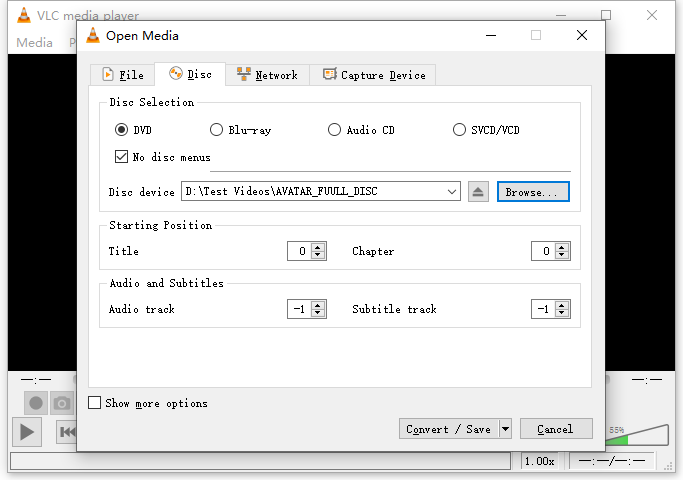
Insert the DVD disc to DVD drive. Open VLC, click Media > Convert / Save … > Click Disc tab from the Open Media window and make sure you see the DVD you want to copy beside Disc device. Here you also need to choose title, audio and subtitle. Since there is no preview window, you may need to do some trial and error to figure out which track is the one you want. Then, tap Convert / Save button.
Step 3. Choose an Output Format and Begin Converting DVD
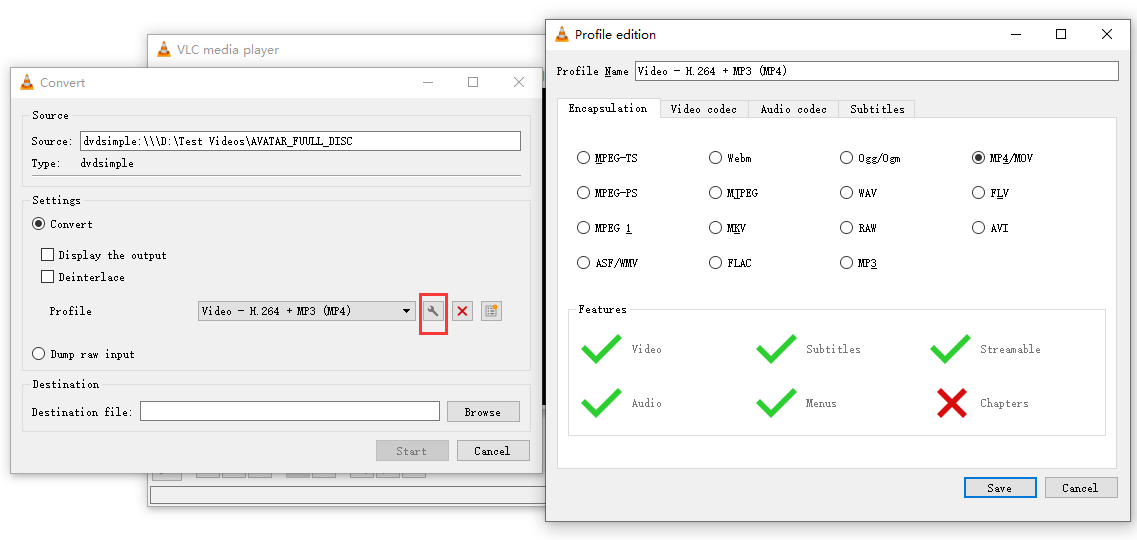
Choose a profile and specify the destination as you like, and click Start. Then, it will begin converting DVD. You can see the progress bar under the playback window.
Tips: If you need to edit the selected profile, you can click the wrench icon. You can click the Encapsulation to change container format, click Video codec to change encoding format, bitrate, quality, frame rate, resolution, and filter, click Audio codec to change audio encoding format, bitrate, channels, and sample rate, and click Subtitles to choose codec and specify whether you want to overlay subtitles on the video. When you finish the settings, don't forget to click the Save button to save your settings.
#5. Copy DVD to Hard Drive with Freemake Video Converter
Freemake Video Converter offers a basic way to copy DVD to a hard drive for Windows users. It supports various input types, including physical discs and ISO images, and offers direct "Upload to YouTube" or "Save to Google Drive" features. This tool is designed for beginners who want a simple interface to convert discs into common formats like AVI, MP4, or WMV. It also includes some handy editing features, allowing you to cut or join video clips before converting them.
However, the free version has a major downside: it adds a branded watermark to the middle of your video. Overall, freemake is a workable choice if you want easy presets and broad format coverage for unprotected content. We don't recommend it for disc collectors, because the upgrade prompts get in the way and it is not a reliable tool for protected commercial DVDs, especially those with strong encryption.
Supported OS: Windows 11/10/8/7
- Save DVDs to PC in 20+ formats, like AVI, MP4, MKV, etc.
- Rip some region-locked DVD discs and folders.
- Support cutting and cropping video, and adding subtitles.
- User-friendly UI with large, clear icons.
- The free version may apply watermarks to the ripped videos.
- Fails to rip most modern commercial movie DVDs.
- Need to pay to unlock some premium features.
[Tutorial] How to rip and save DVD to hard drive with Freemake
Step 1. Insert the DVD disc into the DVD drive. Launch Freemake video converter and find the "+DVD" button at the top row and click it. Select your DVD drive with the disc, and then a VIDEO_TS folder. You may find this folder in your disc C in "My Videos". Choose the biggest VOB (.vob) file from the list for ripping.
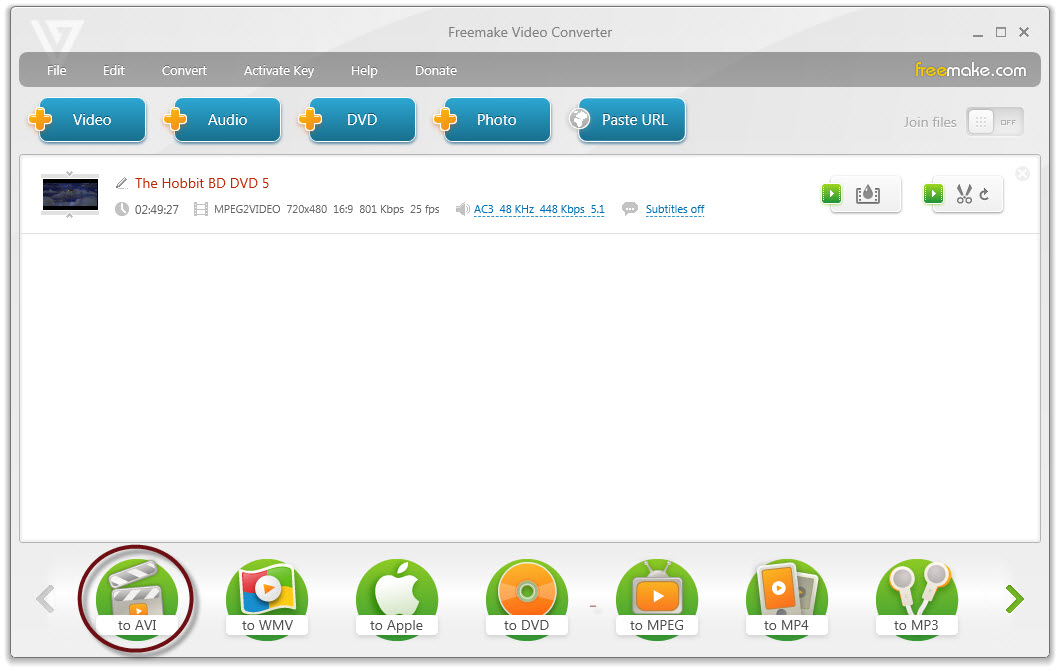
Step 2. Move your mouse cursor to Format bar, pick an appropriate output format forn ripping your DVD video files to save on hard drive. Here you can adjust the video and audio parameter settings and specify the destination folder.
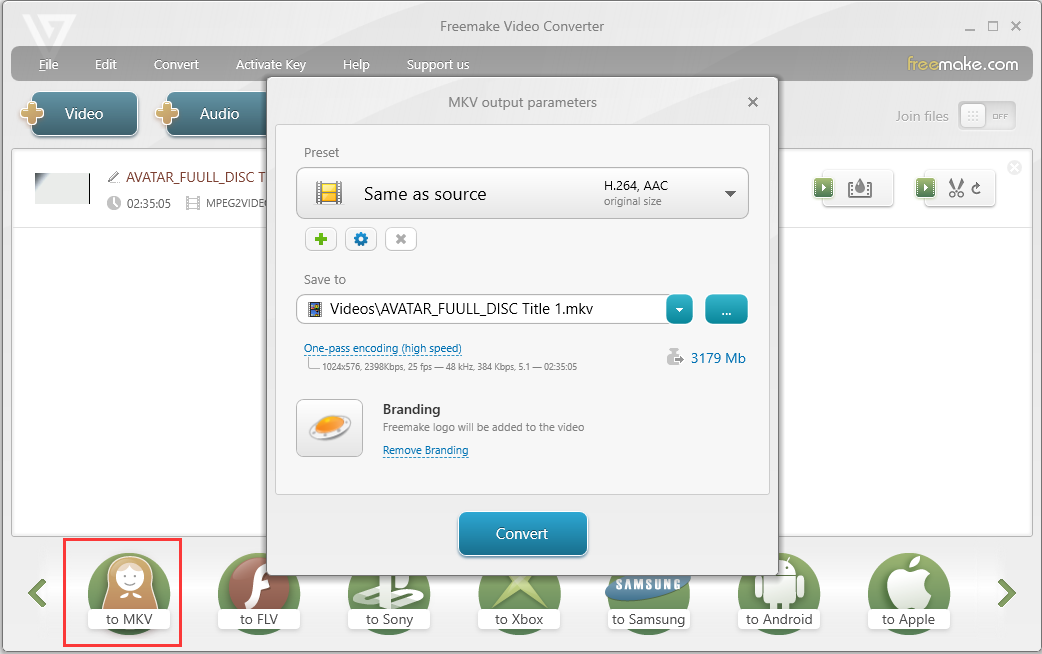
Step 3. After everything is OK, simply click "Convert" button to converting DVD to hard drive using Freemake.
FAQs about Copying DVD to Hard Drive
1. Is it legal to rip a DVD that you own to hard drive?
Whether it is legal to rip DVD that you own for personal use depends on where you live. In the US, it is illegal to rip a copy-protected DVD. But some countries may have different laws. Although you are probably not allowed to do that by law, you probably won't get sued/caught as long as you don't distribute the copies.
2. What's the fastest way to copy DVD to hard drive?
Among these methods mentioned above, EaseFab DVD Ripper is the fastest way to do this since it supports advanced GPU hardware acceleration. It can reach 300-500fps when ripping a DVD to MP4. Put another way, a 2-hour DVD can be converted to MP4 within 5 minutes only. In contrast, HandBrake may need hours to finish this.
3. How to copy DVD to external hard drive to watch on TV?
To do this, you can adopt EaseFab DVD Ripper for help. Below are the simple steps:
1. Download and install EaseFab DVD Ripper on your PC.
2. Insert target DVD into your computer's DVD drive or an external DVD drive connected to your computer.
3. Run EaseFab DVD Ripper and click "Load DVD" button to select and open the DVD you want to copy to external hard drive for TV.
4. Select the output format that your TV supports. On Output Profile panel, scroll down to "TVs/Players" and you'll find a few TV presets including Samsung TV, Sony TV, LG TV, etc. If you can't find a preset for your TV brand, you can simply go to "Common Video" category and choose MP4 Video which should be compatible with your TV.
5. Hit the "Convert" button to start ripping and copying DVD to external hard drive. Once done, you can connect the external hard drive to your TV and watch the movie on TV.
Conclusion
Choosing the right tool to copy DVD to hard drive depends on what you want to keep. Whichever method you choose, first decide whether your goal is playback, full-disc backup, or simple file transfer, then use the output format that matches that purpose.
For ordinary data DVDs containing documents, photos, or existing video files, File Explorer or Finder is enough and no dedicated ripping software is needed.
For a single playable file such as MP4 or MKV, use a DVD ripper. HandBrake is a free option for unprotected sources while MakeMKV is useful when you want a large, lossless MKV. If you need to handle newer copy protections or compress files more efficiently, EaseFab DVD Ripper is the best overall choice for you. Besides digitizing, it can also svae the disc as an ISO or DVD folder while preserving the original DVD structure, menus, chapters, audio, and subtitle.


 Sales Team: