How to Convert HEVC/H.265 to ProRes 422 (LT) on Windows/Mac


Summary: The highly compressed, processor-heavy (4K) HEVC videos files are usually hard to edit in post-production software. But you can convert HEVC to ProRes 422 or ProRes 422 LT to make editing easier. Here is a simple how-to.
To this day, HEVC (or H.265) is widely used by modern smartphones, tablets and cameras, such as GoPro, DJI drones, Canon, and some other DSLR cameras. Though most NLES, including Adobe Premiere, Avid Media Composer, DaVinci Resolve, Final Cut Pro, etc. now can handle HEVC videos natively, the heavy processing required to decode this format can sometimes make playback feel choppy. For easier and smooth edits, transcoding HEVC to Apple ProRes is a good idea.
So why you should use Apple ProRes instead of HEVC for the editing workflow? HEVC (H.265) is designed as a highly compressed delivery format, not an editing format. To achieve tiny file sizes, your CPU must constantly decode complex, interdependent frames on the fly, which drastically slows down scrubbing, playback, and rendering. While ProRes, a lossy video compression format that developed by Apple Inc., is an intermediate codec specially designed for editing. Once you've converted HEVC to ProRes, your computer can scrub and play timelines smoothly. These codecs are so efficient that you can play multiple streams with a fraction of the effort you need for a single stream of H.265 - based video.
In this article, we'll introduce an easy-to-use yet professional ProRes converter tool. Also we show you the simple steps on how to convert H.265 codec to ProRes codec on macOS and Windows 10/11.

Table of contents
Get the Best Tool for Transcoding HEVC/H.265 to ProRes - EaseFab Video Converter
If you need a transcoder that is coming with its own Apple ProRes codecs rather than just relying on those built into the operating system, EaseFab Video Converter for Mac will be your best choice. It's an easy-to-use yet powerful video converter that can convert any 4K/8K/HD video including HEVC to Apple ProRes, Avid DNxHD and other professional codecs. And it works with various HEVC/H.265 files ( CFR and VFR included), no matter what devices record.
EaseFab Video Converter - The One-click Way to Convert Videos to Apple ProRes and more.
- Accepts nearly all types of videos, regardless of video formats, codecs and resolutions.
- Batch transode or pass-through media files to Apple ProRes, ProRes 422, ProRes LT, ProRes 4444, Avid DNxHD and other high-quality codecs.
- Easy editing experience: cut, crop, merge, add effects/watermark, add subtitles...
- Complete HEVC to ProRes conversion and processing in three simple steps.
This software also comes in a Windows version to be used as a ProRes Converter on Windows (Windows 10/11 included). Now download the right version according to computer OS and follow the simple steps below to start converting HEVC to ProRes.
How to Convert HEVC/h.265 to ProRes in 3 Simple Steps
Note: Here we take EaseFab Video Converter for Mac for example to show you the HEVC to ProRes conversion. The process on Windows is the same.
Step 1. Import H.265 videos
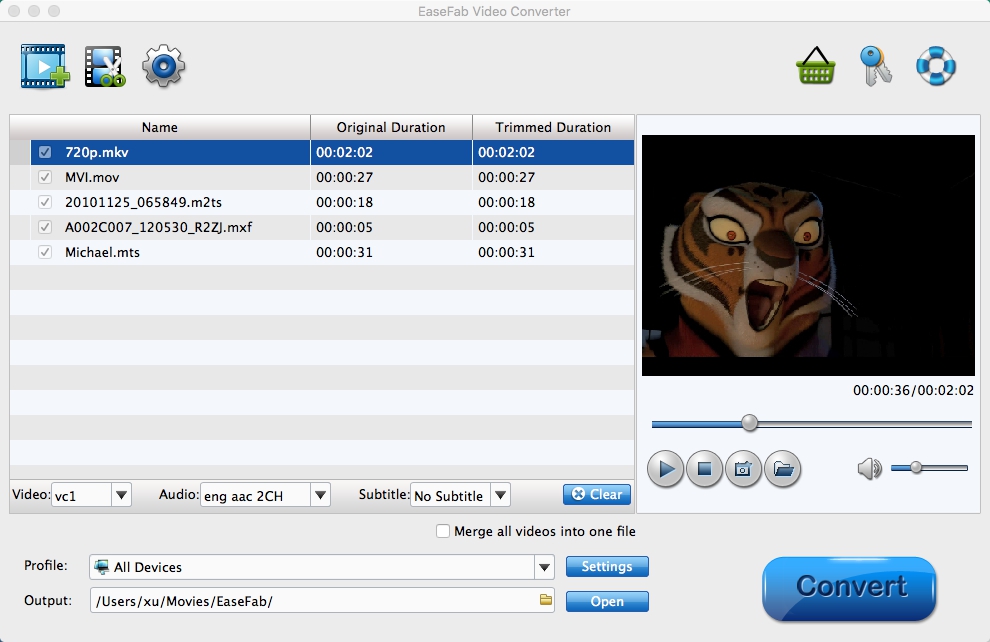
Install the H.265 to ProRes Converter and run it. Drag the H.265 files to the software. Or you can also click "Add" button on the top of the main interface to import video to the program. (Note: batch conversion is supported, so you can load more than one file to save time.)
Step 2. Choose ProRes as the output video format
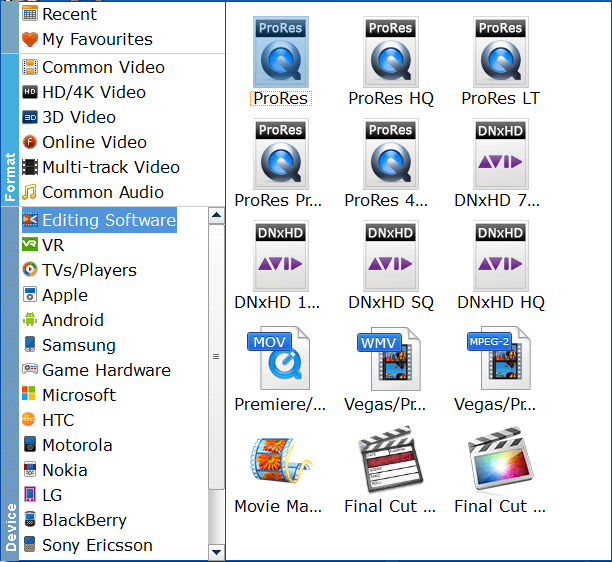
Now click the Profile icon to reveal output panel. And and mouse cursor to "Editing Software" category. You'll find several ProRes formats are provided. Generally, ProRes or ProRes LT are suitable choices for H.265 videos shot with camcorders. ProRes HQ is usually for film based source media.
Tip: By clicking the Settings icon, you can adjust video and audio parameters like codec, bit rate, frame rate, sample rate, etc., in that way, you can take charge of the size and quality of the output files. In principle, the larger input values, the better output quality, but the corresponding larger file size.
Step 3. Start converting H.265 to ProRes
At this point, you can change the output filename or output path if you wish. If you feel satisfied with your options, Just hit the Convert button to activate H.265 file to ProRes conversion.
When all conversions completed, you'll get a pop-up notice. Just click "Open" button, you can fast find where your converted files are saved.
FAQs about Converting HEVC to ProRes
1. Why convert HEVC to ProRes instead of H.264 for editing?
Taking compatibility into account, H.265 is far less compatible than the H.264 codec. For instance, GoPro 4K HEVC videos are not friendly to many editor apps, Adobe Premiere Pro won't import iPhone taken HEVC properly. HEVC is highly acclaimed esp. in the era of 4K 8K Ultra HD while H.264 still dominates now. Therefore, providing that you've got some 4K HEVC videos at hand and don't have a highly configurable yet compatible device/editor to smoothly play or edit your HEVC videos, there is an option - convert HEVC to H.264 is a good option.
But converting HEVC (H.265) to H.264 isn't ideal if you're aiming for the highest quality, especially if you're planning to edit the files in something like Final Cut Pro X or Premiere Pro. It's recompressing one compressed file (HEVC) into another compressed file (H.264), meaning the quality is going to take a further hit with that second-generation compression.
2. What's so good about ProRes?
For the highest quality, you'll be better off converting HEVC to something like Apple's ProRes 422 codec. ProRes and other high-quality video codecs like Avid's DNxHD aren't much good for sharing–the files are way too big for sharing on the web conveniently–but the compression is minimal so the quality remains very high. But they're excellent choices if you're going to edit the video and then export yet another version, which will be a third-generation compressed version.
3. Can Handbrake convert HEVC to Apple ProRes codec?
Yes. HandBrake, the free and open-source video transcoder, adds ProRes, DNxHR encoders and MOV output in 1.11. You can use it to convert video files to Apple ProRes. You can select "Production ProRes" encoders in the software.
Conclusion
You can work with Long-GOP HEVC videos, if you stuff your computer with RAM and it has enough processing power, but this is always going to be second-best to working with a codec that is designed for editing. So don't be shy about converting HEVC to ProRes or DNxHD. They make editing easier, with almost all the advantages of working with Uncompressed video, without the punishing data rates and storage requirements.


 Sales Team: