Top 5 Software to Convert H.265/HEVC to H.264 Free & Fast


H.265 (also known as HEVC) is the successor of MPEG's H.264. It's H.265 (also known as HEVC) is a highly efficient video codec primarily used for 4K video streaming, recording, and broadcasting. Most modern smartphones, computers, smart TVs, streaming media players, and gaming consoles manufactured since 2016 include native hardware support for H.265. While H.265 is superior for saving storage space, H.264 remains the most universally supported format across older electronics and editing software. Therefore, sometimes we need to convert H.265 to H.264 to solve device compatibility and video editing performance issues.
To identify the best HEVC to H.264 converters of 2026, we evaluated dozens of tools based on three critical benchmarks: codec efficiency, hardware utilization, and 4K video handle. While online tools provide quick fixes for clips under 100MB, desktop software like EaseFab Video Converter and FFmpeg excel at processing 4K/8K footage using GPU acceleration. Below is our list of the 5 best HEVC H.265 to H.264 converters for Windows 11/10 and macOS worth trying in 2026.

Top 5 Ways to Convert H.265 to H.264 Easily & Fast
- 1. EaseFab Video Converter (Ultra-fast, cinema-grade quality)
- 2. Handbrake (Fast, high quality)
- 3. VLC Media Player (Slow, standard quality)
- 4. Online Converter - AnyConv (Slow, high quality)
- 5. FFmpeg (Fast & high quality)
- FAQs
Top 5 Ways to Convert H.265 to H.264 Easily & Fast
#1. EaseFab Video Converter - Fast Convert Any 4K/8K HEVC to H.264 with Original Quality
Compatible OS: Windows 11/7/8/earlier, macOS Tahoe and earlier
EaseFab Video Converter is the top choice for H.265 to H.264 conversion. This powerful program can process footage in virtually any format from any source. With it, you can easily and fast convert HEVC (8/10/12 bit) to H.264 without quality loss. To be specific, it's able to:
- Convert all 8K/4K/1080p HEVC videos to H.264, MP4, MPEG-4, ProRes, AV1, VP9/8, MOV, AVI, WebM, WMV, etc.
- Finish the H.265 to H.264 conversion at ultra-fast speed by taking full advantage of GPU acceleration.
- Guarantee to output video with 100% quality reserved, wrinkles or freckles in image still clear enough to count.
- Support 200+ output device profiles incl. iPhone, iPad, Android, Xbox, PS4, Xbox, Apple TV, Chromecast and so on.
- Edit, trim, crop, merge, add subtitles and more before encoding H265 to H264. Flexible parameter settings are accessible.
- Intuitive interface, ultra user-friendly, totally clean and safe, stable and superfast.
- Wide support of audio/video codec and format, including HEVC, AV1, VP9, DTS, MP3, MP4, MKV, MOV, WMV, and more.
- Achieve a balance among video size, output quality and converting speed.
- Need to download and install software on your computer.
- The free version only support 3-minutes length video output.
Guide: How to convert HEVC to H.264 using EaseFab Video Converter
To begin with, download, install and launch EaseFab Video Converter Windows or Mac version on your computer. The guide below takes the Windows version for an example. Mac version has the same process.
Step 1. Click "Add Video" button to import the H.265 videos into the main screen of the HEVC/H.265 converter. You can import multiple HEVC files to the program to convert at a time.
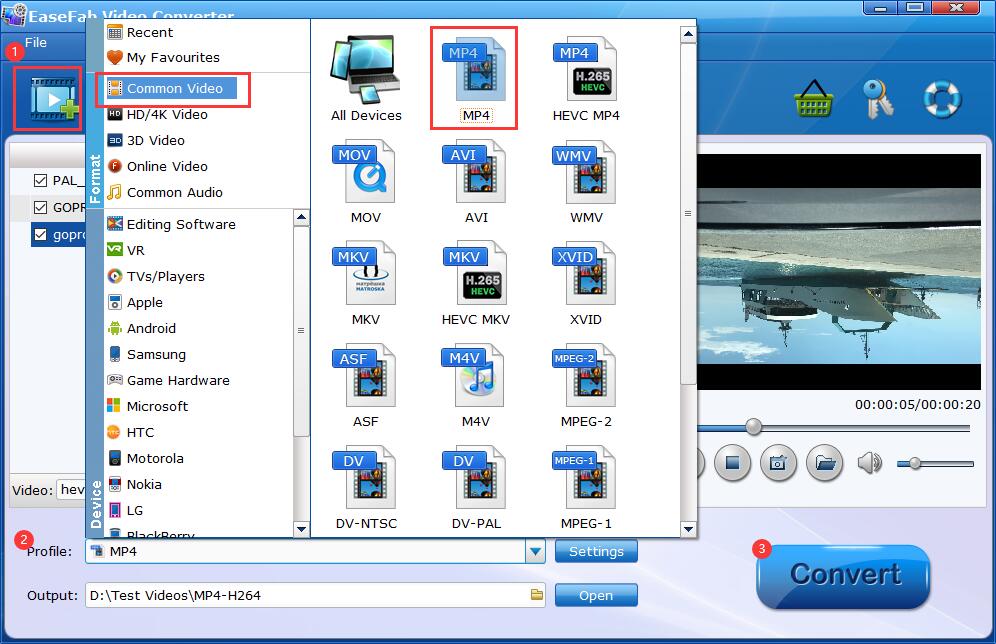
Step 2. Click "Profile" bar and move muse cursor to "Common Video" category, then select MP4 (codec: h.264) as the output format. This program provides many other output video formats encoded H.264 codec, such as MOV, MKV, M4V, etc, you can feel free to choose according to your own needs.
Step 3. Click Settings button next to Profile icon to adjust video/audio parameters to achieve desired output results before changing HEVC/H.265 to H.264. Click Edit button to trim video clips, crop videos, adding external subtitles, etc.
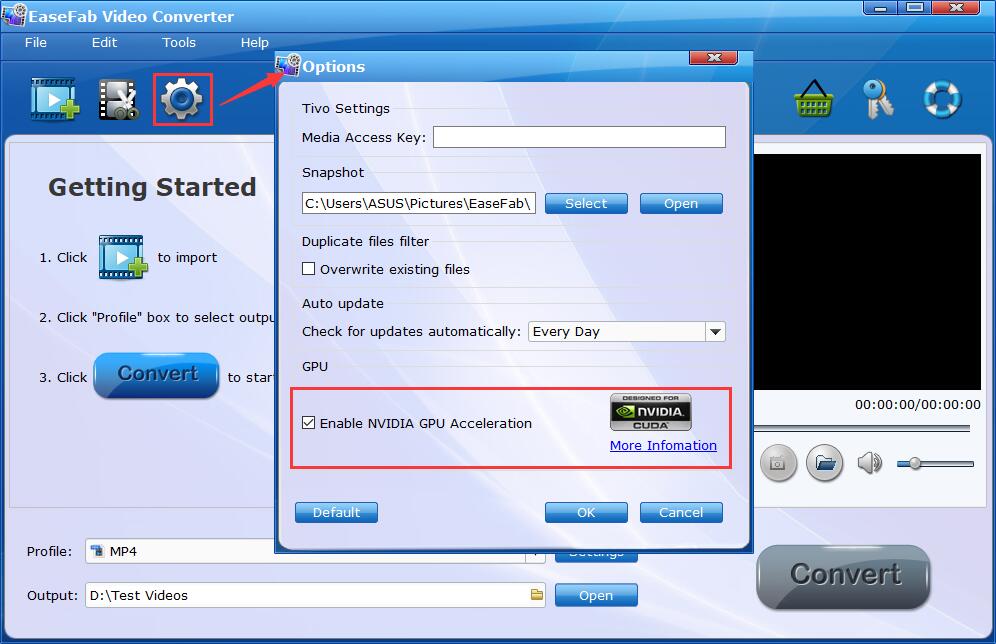
Step 4. Back on the main interface, click "Options" button to enable the GPU Acceleration. It will apply the Nvidia, AMD, or Intel GPU acceleration if possible to speed up the HEVC video converting speed. Click the blue "Convert" button to start. The hardware acceleration tech can boost the HEVC to H.264 conversion to 5x faster while keeping the original quality.
#2. HandBrake - Free & Highly Customizable to Convert H.265 to H.264
Compatible OS: Windows, macOS, Linux
Handbrake is a completely free piece of video conversion software with its target formats limited to MP4, WebM, and MKV. With unmatched codec flexibility, you can convert HEVC videos to H.264, AV1, MPEG-2, VP8 and VP9. It includes updated support for AMD VCN, Intel QSV, and NVIDIA NVENC (supporting both HEVC and AV1 hardware encoding) to accelerate your workflow on Windows and macOS. More than that, it lets you fine-tune things like codec, bitrate, resolution, video quality, filter, and more for the perfect conversion.
People who have used this software figure out that it has complex interface and settings which are more suitable for experienced users. But if you're seeking for a free HEVC to H.264 converter, HandBrake will have the job well done.
- It offers an extensive range of settings and options for precise video customization.
- The output H.264 file is optimized for low sizes without much loss in quality.
- HandBrake only support to convert video to MKV and MP4.
- Slow conversion speed while converting 4K HEVC footage.
- The UI is a bit overwhelming with options and selections. Finding the right setting can be a long process of trial and error.
[Guide] How to convert H.265/HEVC to H.264 for free with Handbrake
Step 1: Download Handbrake (latest version 1.11.2) from its official website. Install and open it.
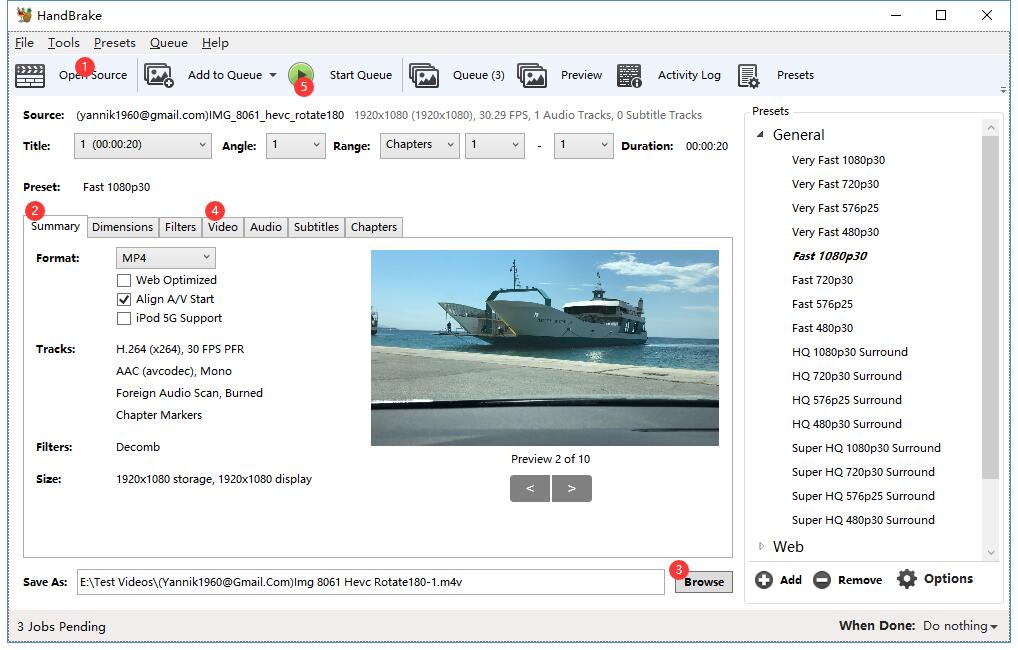
Step 2: Click Open Source button to load folder with one or more H.265/HEVC video files, or choose a single H.265/HEVC video file.
Step 3: Next click Browse button to set a target folder to store the converted H.264 video.
Step 4: Choose MP4 or MKV as the output video container.
Step 5: Then hit Video tab to select H.264 (x264) video codec as the output and adjust other video settings like frame rate, bit rate, etc.
Step 6: Hit Start button on the top left to start converting H.265/HEVC to H.264 for free with Handbrake on Windows 10/8/7 or Mac.
#3. VLC - Best for Free & Basic HEVC to H.264 Conversion
Compatible OS: Windows, macOS, Linux
You may be familar with VLC as a free and popular multimedia player that supports video playback of many formats. Can VLC convert HEVC to H.264? Certainly yes. VLC can also be used as a video converter to convert videos to H.265, H.264, MPEG-4, DIVX, VP8, and more. Though it may be not as powerful as professional video converters, it fully meets the common video format conversion needs on Windows and Mac if you don't want to install any extra software on your computer.
- Easy to use, free and available on cross-platforms.
- No need to download any other third-party video converter if you've installed VLC media player.
- Update constantly to support the latest codec such as AVI, H.265 etc.
- Limited video output support.
- Conversion isn't speedy. Can't merge video clips.
[Guide] How to convert H.265 to H.264 with VLC
Step 1. Open up VLC on your computer (take Windows 11 PC as an example), and click Media on the toolbar and select Convert / Save to enter a new Open Media window.
Step 2. Click Add button to browse and import your target HEVC video. It supports to import several videos at once. Then click Convert / Save button.
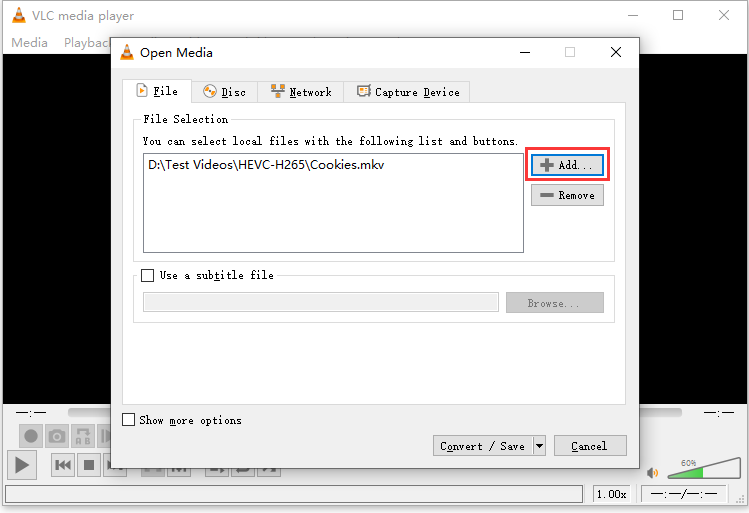
Step 3. Expand the drop-down menu of Profile and select Video – MP4 H.264 + MP3. Click the wrench icon and choose H.264 in Video Codec. Click Save.
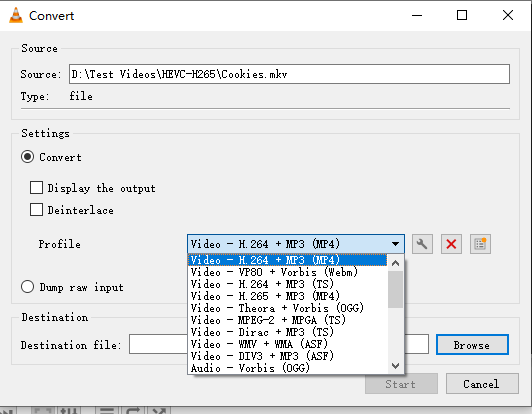
Step 4. Click Browse to specify the destination path for the output video.
Step 5. When you're done, click Start button to comvert H.265 to H.264 using VLC.
Key issues to watch out for converting HEVC to H.264 with VLC:
- While VLC 3.0+ supports hardware decoding, its encoding process is primarily software-driven. This leads to the massive speed gap compared to EaseFab Video Converter.
- If you try to queue 10 more HEVC files, VLC is prone to crashing midway.
#4. AnyConv - Online Way to Free Convert HEVC to H.265 with File Size Limits
The fourth option to convert HEVC to H.264 is to use an online converter like AnyConv. This online H.265 to H.264 converter is a free online website for you to batch convert H.265 files to H.264 on any platform. You're only required to choose file, click convert and download resulting MP4 file after the conversion is completed. It's friendly to anyone with whatever skill level. And its supported output formats never end up with only HEVC format. Instead, the most widely used digital formats like MP4, MOV, MKV, DIVX, MPEG-4, AVCHD, AV1 are all selectable, as well.
Thus, if your input H265 file size doen't exceed 100MB, this online video converter is your bullet silver. For 4K HEVC input file over 100MB, go back to EaseFab Video Converter (no limit on file size).
- Free and easy-to-use. No need to install any thrid-party software on your computer.
- A wide range of input and output formats supported, up to 4K.
- 100MB file size limit.
- Totally rely on network connection.
[Guide] How to convert H.265 to H.264 Online with AnyConv
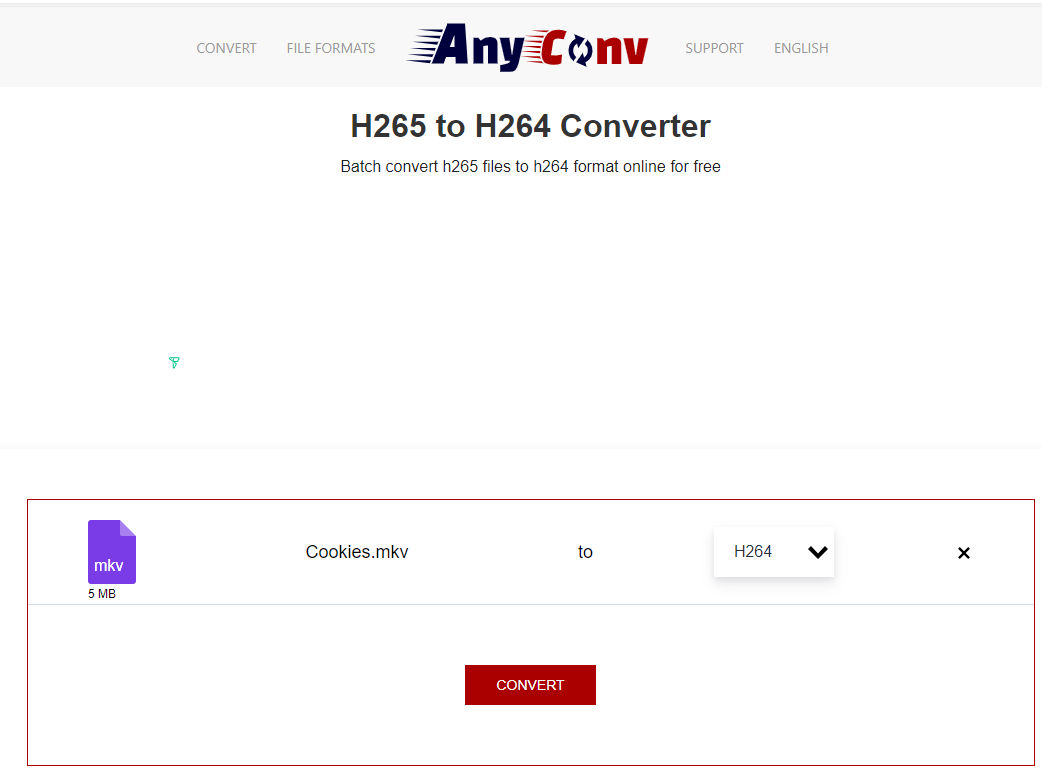
Step 1. Visit Anyconv official page https://anyconv.com/h265-to-h264-converter/, click on the "Choose File" button r drag and drop to load the H.265 file you want to convert.
Step 2. Tap the "Convert" button to start converting H.265 to H.264 now.
You'd better exit other running programs while converting H265 to H.264 online on AnyConv, for its speed is highly related with the network speed. And normally, the progress bar is not so fast as you imagine though you shut down all the running apps or websites.
#5. FFmpeg - The Free Open Source HEVC to H.264 Converter for Techies and Command-Line Experts
Compatible OS: Windows, macOS, Linux
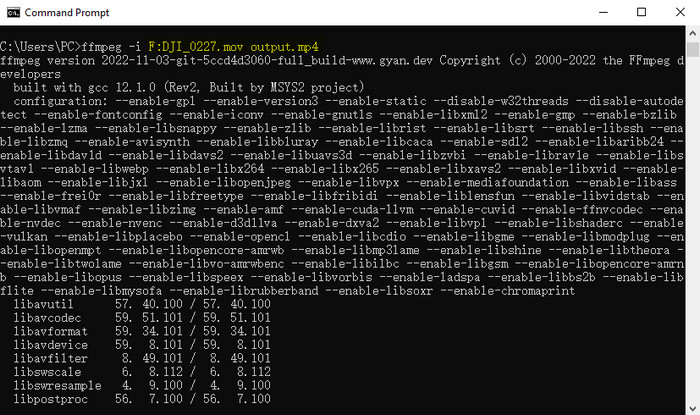
The latest method we recommend for encoding H.265 to H.264 is using FFmpeg. This tool is a free and open-source software project that based on command lines. It offers a complete, cross-platform solution to record, convert and stream audio and video, including H.265 to H.264. Besides, it can use Nvidia, Intel, and AMD GPU acceleration to help convert the videos at a fast speed, including any 8K and 4K UHD HEVC videos. But for novices, FFmpeg can be hard to use. Kowning the basic command lines could help a lot. Here is the detailed explation of this command line:
- ffmpeg: a necessary part to tell the OS who is using the command line.
- -i: the abbreviation of input, means the following file is the original file to be converted.
- input.mk: the file that is to be converted. You can input two files at once through "ffmpeg -i input1.mkv input2.mkv".
- c:v libx264 output.mp4: The output file is in H.264MP4 container.
- Excellent codec and filter support.
- Support a large number of encoders and decoders.
- Provide video streaming and web hosting capabilities.
- It's not easy for beginners to use and implement.
- The official documentation is not clear and can be quite confusing.
[With command lines] How to convert H.265 to H.264 with FFmpeg
Step 1. Download FFmpeg from its official site and set it up.
Step 2. Once the FFmpeg is set up, type [windows+r], then cmd in the popup field, and hit enter to open a terminal window. Then you can enter the command line to let FFmpeg convert the HEVC videos into H.264.
Step 3. Here are many command lines on the FFmpeg website and other sites online. Below are some examples to convert HEVC to H.264 with no visual quality loss. You can copy a command into the terminal window and hit Enter to start.
- 10-bit/12-bit HEVC to 8-bit H.264: ffmpeg -i input -map 0 -c:v libx264 -crf 18 -vf format=yuv420p -c:a copy output.mkv
- 10-bit/12-bit HEVC to 10-bit H.264: ffmpeg -i input -map 0 -c:v libx264 -crf 18 -c:a copy output.mkv
- HEVC to H.264: ffmpeg -i input -map 0 -c:v libx264 -crf 18 -c:a copy -c:s copy output.mkv
FAQs on Converting HEVC H.265 to H.264
1. Should I Convert Videos to HEVC or MP4?
It's important to clarify: MP4 is a container, while HEVC is a codec. If the input video is an uncompressed source or at least a high-bit-rate compressed source, converting it to HEVC H.265 can compress the content into a lower bit rate while maintaining the same quality. But for videos lower than 1080P, you will probably mostly waste a lot of time and not save much space. HEVC is best used if you compress from the same high-quality original material (e.g. Blu-ray). Otherwise, choose MP4.
2. Is there any other online HEVC to H.264 converters?
Yes. Besides the AnyConv we listed above, there are other leading online HEVC converters, which re-encode HEVC files to H.264 fast and easily.
- convertio.co
- freefileconvert.com
- clipchamp.com
- video-converter.com
3. Why Are Online HEVC H.265 Converter Often Slower than Desktop Tools?
As H.265 codec often comes with high bitrate and high resolution, and HEVC decoding/encoding is quite CPU/GPU intensive, online tools are often not the best choices. For a 5-minute 4K clip, an online tool might take 30 minutes to process, whereas a desktop converter like EaseFab Video Converter or FFmpeg can finish in under 3 minutes using local hardware accelerations.
Final Words:
HEVC is highly acclaimed esp. in the era of 4K 8K Ultra HD while H.264 still dominates now, which makes sense to convert H.265 to H.264. Online video converters may be an option, but not the best one owing to the strict size limit ( <20MB ), instability, poor output quality, and even malware/adware. Thus you need a solid clean and easy-to-use HEVC converter, EaseFab Video Converter will be your best pick.


 Sales Team: