
Action! is a paid game recording software with tons of amazing features. You can create High quality video up to 4k resolution, high frame rates and even add live commentary to it. The videos can be streamed over all popular services like, YouTube, Hitbox, Twitch, Livestream and Ustream, etc. Before uploading, most of you love to edit the videos. However, many people encounter problems while trying to open Action! recorded video files in Sony Vegas Pro:
Q1: Sony Vegas 11 Action! mp4 problem - Only imports audio, no video
Whenever I try to import a video I've just recorded with Action onto Sony Vegas Pro 11, it only imports the audio and there's no trace of the video whatsoever. I looked up some solutions online and they all said that I needed to install various codecs because apparently Sony Vegas didn't accept the mp4 format.
Q2: Sony Vegas problem/Mirllis Action flicker
I am using Mirillis Action to record my videos. I use Sony Vegas Pro 11 to edit them. Mirillis Action has their special codec or something that they use, its called FICV. It also has option to record AVI or MP4 files. I recorded few videos in AVI and I am trying to edit them in Sony Vegas. my Sony Vegas crashes every now and then with a message "Vegas has stopped working" and I think that same codec(FICV) is causing it.
As you see, many people may have the same problem when trying to import Action! video to Sony Vegas Pro. It seems that Sony Vegas apparently doesn't like the type the Mirillis Action is creating. Luckily, there is an easy way to fix the problem. Actually, it's not as difficult as you imagine. What's need is just a common video converter like EaseFab Video Converter. With it, you can effortlessly transcode Action! MP4/AVI to Sony Vegas editing-friendly format without quality loss. What's more, the conversion is easy to handle and only with a few simple clicks, you can finish the conversion without facing any glitches. This will save you both time and trouble, and all you need is to drag the result videos for prompt editing.
Just download, install and launch this great Action! to Sony Vegas video converter and then follow the tutorial to edit Action! recorded videos in Sony Vegas Pro smoothly.
How to convert Action! footage for editing in Sony Vegas
Step 1. Load the recorded videos
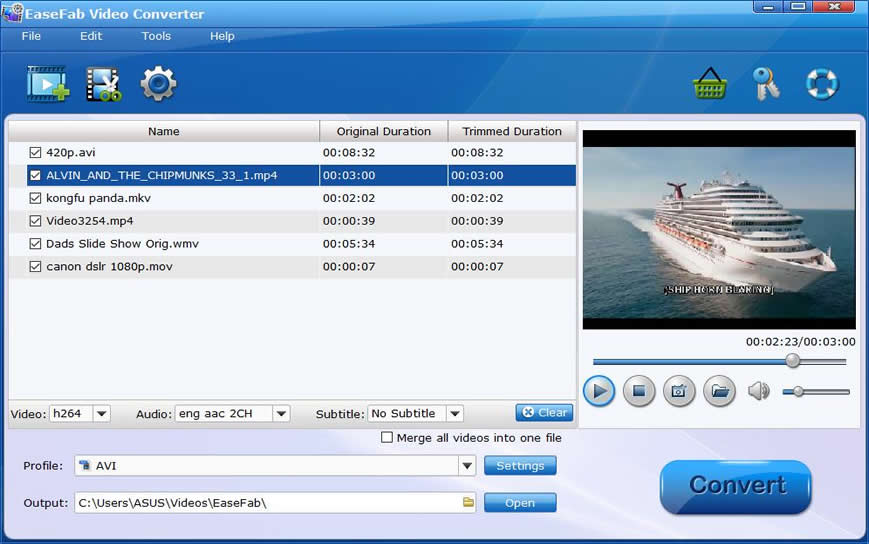
Run EaseFab Video Converter, after that, simply drag and drop Action! recorded AVI or MP4 files to the program. (Note: batch conversion is supported, so you can load more than one file to save time.)
Step 2. Choose output format for Sony Vegas
Select "Editing Software" - "Vegas/Premiere (MPEG-2)" from the format drop-down menu. The output video seamlessly fits Sony Vegas Pro 13/12/11/10, etc. and the original quality of Action! video will be kept.
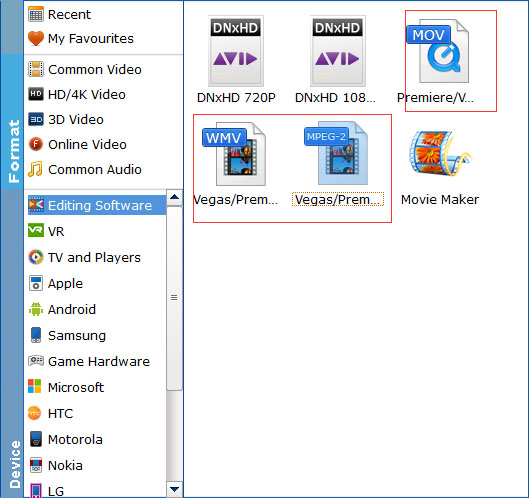
Tips: By clicking the Settings button beside Profile, you can adjust the output video/audio resolution, frame rate, bit rate, etc. to customize the output files to get the best quality you want.
Step 3. Start conversion
Hit the "Convert" button and your Action! video files will be converted into MPEG-2 files ready to be imported into Sony Vegas Pro.
Once the conversion done, you can click "Open" button to get the output files effortlessly. Now you have got it right, just to import and edit Mirillis Action! recorded footage with Sony Vegas Pro 8/9/10/11/12/13 at ease.
You're done.

 Sales Team: