How to Rip DVDs for Plex, Organize and Upload DVD Movies to Plex


"Thinking about ripping my DVD collection to my plex media server (so I can take my DVDs to storage and free up some space in my living room. Wondering what the best practice/software/settings are. Most info I find is from 2014 or older. Running from a dedicated HTPC/Windows10 Machine." - from a reddit user
It is easy to get your movies free into Plex Media Sever to play on your TV, iPad, computer or phones both home and away. What if we want to put our DVDs on Plex? Though this popular media server cannot natively navigate physical disc menus (e.g. Video_TS folder, ISO image, etc.) or bypass commercial encryption, you can adopt disc ripping tool to digitize and rip DVDs for Plex. Once converting the DVDs to digital files like MP4 or MKV, you can store these files on Plex server and stream them anytime, from anywhere.
In this article, we will share you with 2 efficient ways to rip DVDs for Plex. We will also explain what's the best format settings for ripping DVDs to Plex to avoid endless transcoding. Beyond the ripping, you need to organize your movies to add DVDs to Plex correctly. This article covers everything you need to ensure your media server identifies every movie accurately and delivers smooth playback across all your devices. Keep on reading to get what you want to know.
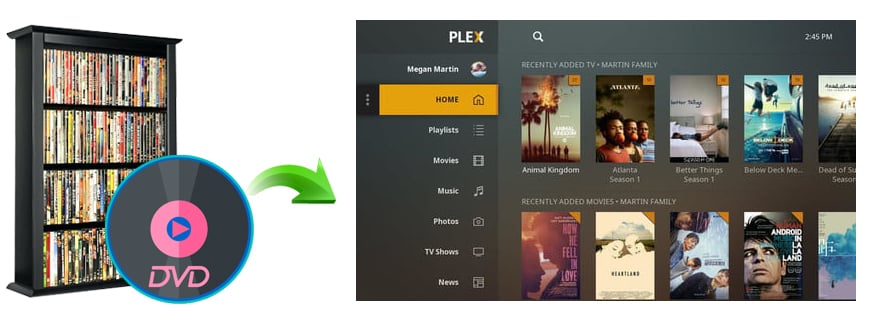
Table of Contents
What's the Best Format & Settings for Ripping DVD to Plex
Plex can play most media files via Direct Play or after transcoding. When ripping DVD for Plex, it's crucial to choose the right format and settings to avoid unnecessary transcoding. Based on Plex's own format guidelines, the most compatible options are MP4 (H.264 + AAC) and MKV (H.264 video + AAC/AC3, keeps multiple audio tracks & subtitles). Other containers like MOV, AVI, MPEG, WMV, or ASF can work on certain Plex clients, but they usually need to be either directly streamed or transcoded.
Below are the best format settings recommended by reddit users for ripping DVDs to Plex:
- Video Codec: H.264 (DVDs are SD; don't upscale to 1080p unless you're okay with interpolation – it won't improve true quality)
- Audio: AAC or AC3 pass-through (keeps Dolby/DTS tracks intact)
- Resolution: Keep original DVD SD resolution (typically 720×480 for NTSC or 720×576 for PAL)
- Frame Rate: Keep original DVD framerate (usually 23.976, 25, or 29.97 fps)
- Subtitles: Keep SRT if possible; HandBrake can burn in DVD-embedded subtitles or keep them soft for Plex
If your media doesn't meet the settings above, Plex can still play it by transcoding on the fly, but that can be be resource-intensive—especially for high-resolution files or multiple simultaneous streams. To minimize transcoding on Plex and ensure smooth playback on all devices, converting the discs into MP4 (h.264) is widely recommended.
Top 2 Ways to Rip DVDs for Plex
Today, there are many options available to decrypt and rip DVDs for Plex. The free workflow combining MakeMKV and HandBrake is highly recommended on Plex forums and Reddit communities. While completely free, this workflow is more complex, and it frequently fails when encountering modern copyright protections on commercial discs. Moreover, you can often run into headaches like out-of-sync audio, missing subtitles and slow processing. For an easier and more efficient solution, EaseFab DVD Ripper is the top pick for its unmatched ability to bypass any encryption and its sheer GPU-accelerated speed.
In this section, we will introduce the detailed steps on how to rip DVDs to Plex compatible formats with the two methods.
1. Rip Any DVDs for Plex with EaseFab DVD Ripper
EaseFab DVD Ripper is an industry standard specialized ripper that can rip any DVD to Plex supported formats with balanced quality and file size. It efficiently eliminates copy protections such as RC, RCE, APS, and 99 titles from discs and convert DVDs to small, high-quality MP4 (H.264 + AAC) files for maximum Direct Play compatibility across almost all Plex apps. In addition, you can select specific titles, chapters, audio tracks, and subtitles, and you can trim, crop, and merge videos, giving you full control over the output.
This best DVD ripper for Plex, boasts hardware acceleration technology, which significantly speeds up the ripping process. Ripping a DVD to Plex MP4 can be accomplished within a matter of minutes. This is very beneficial for people with a large DVD collection. EaseFab also receives frequent updates to handle new Java based DVD encryptions which ensures compatibility with the latest releases.
I use EaseFab DVD Ripper (version 5.9.2) to bulk digitize my DVD collection. In my tests on Windows 11 using its GPU acceleration, EaseFab ripped and compressed the 6.84 GB "Avatar" DVD to a 1.93 GB MP4 (H.264/AAC) in roughly 5 minutes. The end result is a high-quality video file that can be smoothly streamed and played by my Plex server. Using the MKV Lossless profile, the job finished in only 1 min 37 s, with the output matching the original source.
Key features:
- Handle all encrypted DVDs (region codes, CSS, ARccOS, etc.) without extra software.
- Convert DVD disc, ISO image, Video_TS to Plex-compatible formats (MP4, MKV, MOV, WMV) with minimal quality loss.
- Flexibily select specific titles, chapters, audio tracks, and subtitles you want to rip.
- Use GPU hardware to accelerate the ripping process and supports batch processing for large libraries.
- Allow you to adjust output video/audio parameters, like codec, resolution, bit rate, etc. to produce optimal file size.
- Allow you to extract image-based DVD subs to SRT text subtitles for best compatibility.
- Offer a built-in video editor that can crop, trim, add watermark/effect and brighten video.
Click the button below to download and install best DVD ripper for Plex.
3 simple steps to rip DVDs for Plex with EaseFab DVD Ripper
Quick Guide:
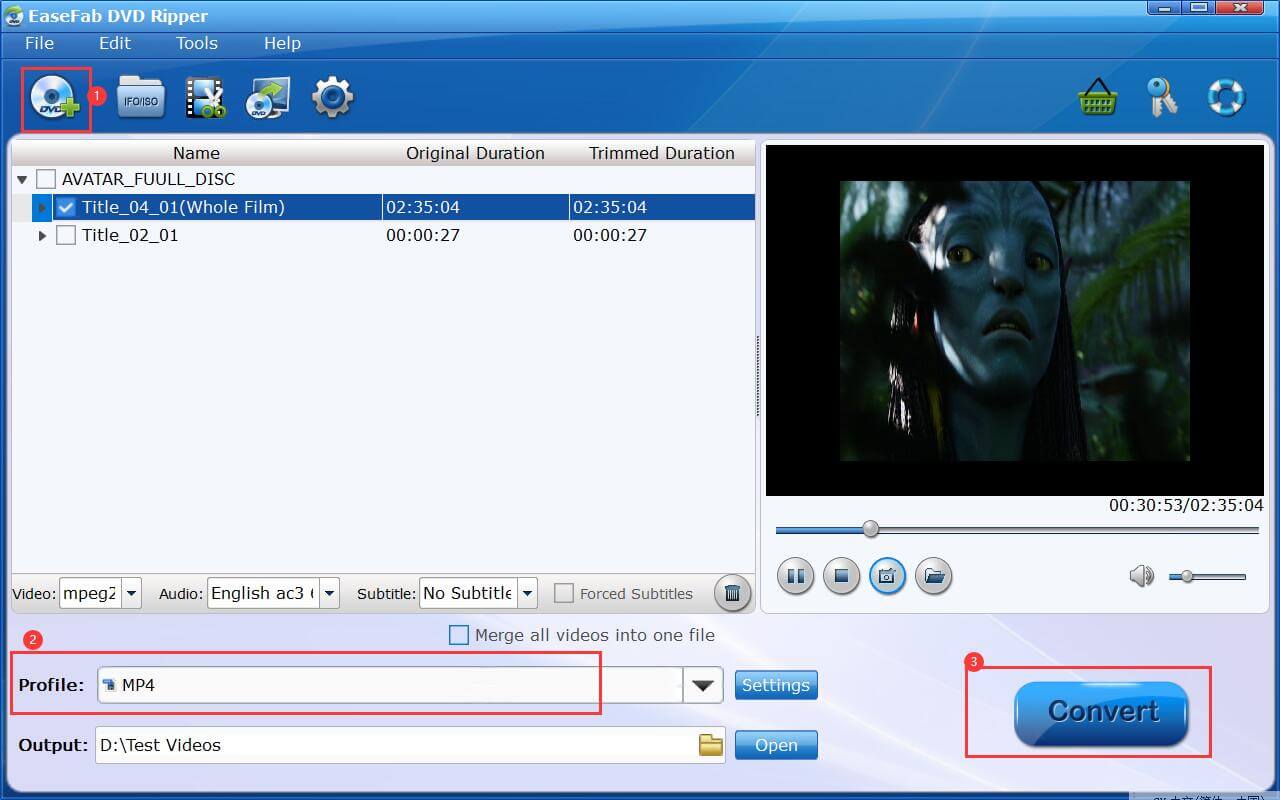
1. Load Disc: Insert your DVD and load DVD to EaseFab DVD Ripper.
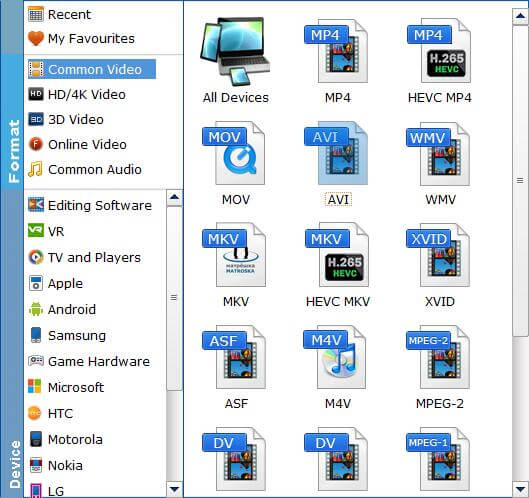
2. Select MP4: Choose the "MP4" profile (H.264 for compatibility or HEVC for smaller size) from "Common Video" category.
3. Convert: Enable GPU Hardware Acceleration is checked and click "Convert" to start
Step 1. Load the source DVD
First of all the process starts at the DVD drive, insert your DVD in the drive, then launch the DVD ripper software. Click Load DVD button to import the original DVD you want to put into Plex. The DVD ripper supports advanced encryptions like navigation algorithm used in multiple titles. It will easily detect the correct title hiden in DVDs from Disney, Sony, Paramount, etc.
On the main interface, you can choose the titles you want to rip and select chapters, audio tracks, and subtitles as you like.
Step 2. Choose an output format for Plex.
To rip DVD movies with maximum compatibility across Plex clients, click "Profile" bar, move mouse cursor to "Common Video" category and select "MP4" as the output format. This will give you an MP4 container with H.264 video and AAC audio by default.
Tips:
1. Click the "Settings" icon, you can adjust video audio parameters. But if you don't know parameters very well, just keep the default settings which are already the best settings for your Plex.
2. If you also want to edit the video, like trimming, cropping, cropping, trimming, adding watermarks, and even adjusting the video color, just click on "Edit" button.
3. If you prefer to keep everything in a richer container, you can choose "MKV Lossless" from "Multi-track Video" category instead. Plex make sure you have enough server space since the MKV file from a DVD rip can be anywhere between 4 and 8GB, depending on the content.
Step 3. Set output and start to rip DVD to Plex.
At the bottom of the interface, use the "Folder" icon to set your output path. Finally, click the "Convert" button to launch the DVD to Plex MP4 conversion. Minutes later, the DVD video will be saved in the destination folder in an format of Plex.
2. Free Rip DVDs for Plex with MakeMKV + HandBrake
MakeMKV and HandBrake offer a reliable two-step workflow to rip DVDs for Plex. This free workflow is highly recommended by Reddit users since it gives you control over quality while keeping file sizes reasonable. MakeMKV acts as a specialized remuxer that bypasses CSS encryption to extract lossless MKV files. HandBrake then functions as a transcoder to convert the large MKV files to smaller, Plex-firendly MP4 files using codecs like H.264 or H.265.
In my evalution, this combination reliably handles some protected discs that cause HandBrake to fail, but it struggles to bypass newer commercial disc encryptions. Moreover, two-step conversion workflow extends the total processing time per DVD. And manual subtitle extraction and track management often cause out-of-sync audio.
How to rip DVDs for Plex using MakeMKV and HandBrake
Step 1. Extract lossless MKV from DVD with MakeMKV
With MakeMKV, users can digitize protected Blu-ray and DVD discs into digital MKV files for free during its BETA phase. Notably, the conversion process preserves the original quality without any compression, ensuring that users receive a digital copy identical to the original.
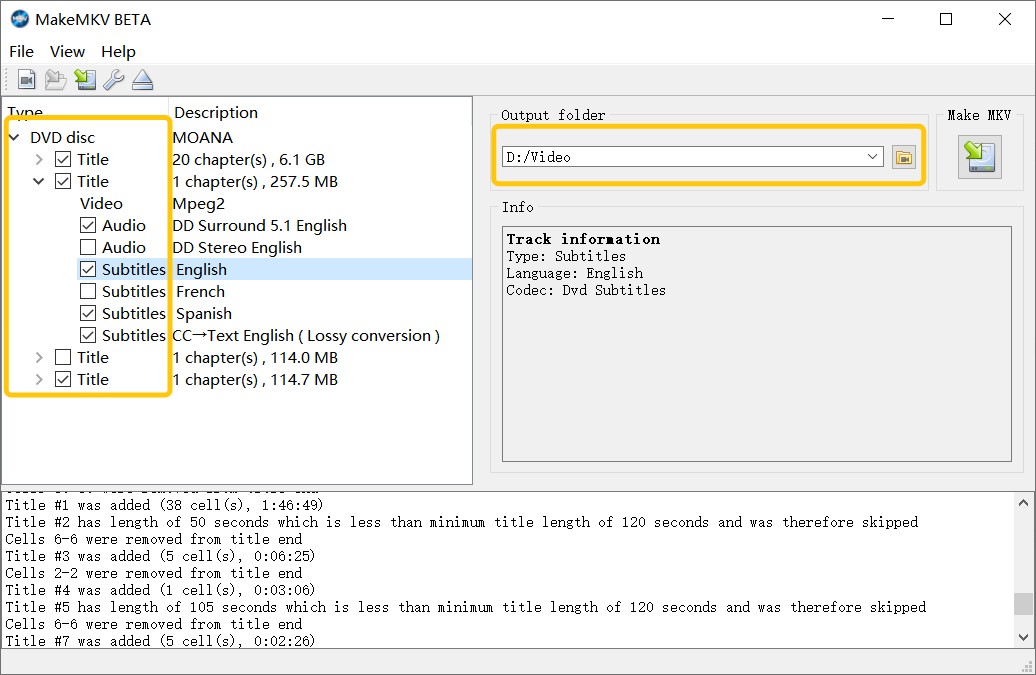
① Download and install MakeMKV on your Windows, Mac, or Linux computer. Open MakeMKV and insert the DVD to the DVD drive.
② When MakeMKV detects your DVD, click the "Open DVD disk" button to let MakeMKV access your DVD.
③ When you see a tree structure with your titles, video tracks, audios, and subtitles, just choose which titles or tracks you want to convert.
④ Click "Set output folder" button to specify where you want to save the digital copy. Click the "Make MKV" button to begin converting DVD to MKV digital file.
Step 2. Transcode MKV to MP4 for Plex with HandBrake
Keep in mind that a single MKV file from a DVD rip can be anywhere between 4 and 8GB, depending on the content. The large MKV file may not Direct Play on all devices due to unsupported audio codecs, high-bitrate video or corrupt subtitle tracks. To avoid frequently pause or playback error, you can use HandBrake to convert the MKV file to an MP4 file. If you want more control, it lets you fine-tune things like codec, bitrate, resolution, video quality, filter, and more for the perfect conversion to enhance the Plex viewing experience.
① Open HandBrake and drag the ripped MKV files into the Window.
② In the "Summary" tab, set the Format to MP4 and check "Web Optimized".
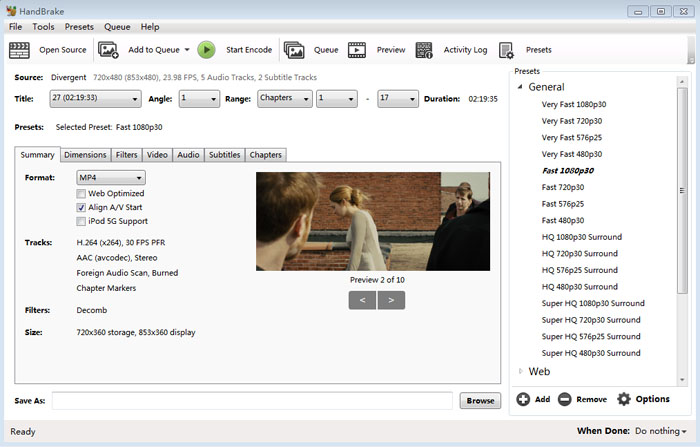
③ Select one preferred output video codec like H.264 (x264) under "Video" tab.
④ Click the "Start Encode" at the top. Once the process is complete, add the ripped file to your Plex media library.
How to Organize and Add Ripped DVD Movies to Plex Library
How to name and organize your movies and TV shows
Plex is very picky about its file names and folder structures. While you can throw a bunch of MP4 or MKV files into a single folder and have Plex semi-organize it all, having a proper folder structure and file naming scheme is a much better alternative. Overall, proper file naming is essential so Plex can automatically match metadata. Below are the official naming conventions about movies and TV shows.
For Movies: The standard format is Movie Title (Year). For example:
- : /Movies/Jurassic Park (1993).mp4
- : /Movies/Avatar (2009).mkv
For TV Shows: You must use a hierarchy of Show Name > Season Folder > Episode File. The file name must contain the season and episode code (SXXEYY). For example:
- : /TV Shows/The Office (US)/Season 01/The Office (US) - S01E01.mp4
Tips: Always include the release year in parentheses. This helps Plex distinguish between a movie and its remake (e.g., The Mummy 1999 vs. 2017).
How to add DVD rips to Plex library
If you don't get a movie folder, you need to create a library, use steps below to do so.
Step 1: Run the Plex Media Server on your computer, or compatible NAS device, or others.
Step 2: Click the Settings icon to get more settings options.
Step 3: Select Libraries under the Manage section.
Step 4: Click Add Library, select the library type and name the library.
Step 5: Put your movie files in a folder and back to Plex.
Step 6: Select the Add folder. Click the "BROWSE FOR MEDIA FOLDER" button and select the movie folder with movie files you want to add. Click the ADD button and finish the steps Plex shows.
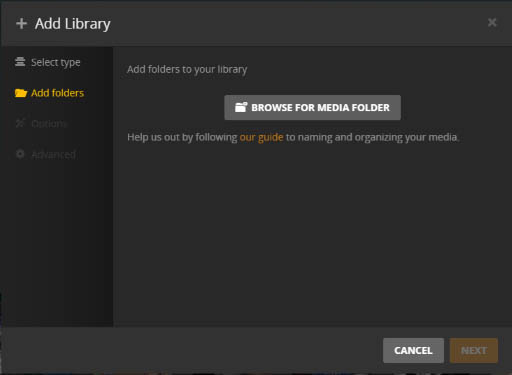
Once the DVD rips added to your Plex media server, you can install Plex app on any of your devices to stream and watch the DVD movie video anytime and anywhere you want.
FAQs about Ripping DVD for Plex
Q1: How to rip DVD to Plex on Mac?
EaseFab DVD Ripper has a Mac version which help you convert DVDs to Plex on Mac (macOS Ventura included). The procedure is like ripping DVD for Plex on Wiindows, so just download this tool and follow the steps in Part 3.
Q2: Can Plex itself rip DVDs?
No. Plex doesn't supports encoding DVDs and disk image files (e.g. ISO, Video_TS folder).
Q3: Can I use Handbrake to rip DVDs for Plex?
If you want to convert your DVDs to Plex without paying money, you can check HandBrake. This is a free open source video transcoder for Windows, Mac, and Linux. It can convert your non-protected DVDs to Plex compatible MP4 or MKV files. Without libdvdcss, it cannot handle copy-protected DVDs for Plex.
For the detailed steps, you can refer to our article "How to decrypt and rip DVD with Handbrake" to learn more.
Q4: Can Plex play the MKV files from MakeMKV?
MakeMKV is a great choice for DVD ripping. And it can also cope with protected Blu-ray discs. As its name indicates, MakeMKV can only export MKV files. And, there is no compression, which means you'll get a high-quality but large-size digital copy.
You can easily play the MKV files on your PC or Mac using a third-party media player like VLC. However, If you want to stream and play these giant MKV files via Plex, you'll probably end up with failure or encounter various MKV playback issues. Moreover, many client devices out there do NOT natively play mkv files.
To make Plex play MKV files ripped from DVD or Blu-ray using MakeMKV, you'll need to compress or convert MKV files.


 Sales Team: