Top 5 Free AV1 to H.264 Converters in 2026 (Tested)


While AV1 tends to offer better compression efficiency and potentially smaller file sizes compared to HEVC, older devices, specific software editors, or web browsers may not support it natively. Converting AV1 to H.264 can improve video compatibility and esnure the video can be played or edited virtually anywhere.
In this post, we will explain why users need to convert AV1 to H.264 and introduce you five reliable AV1 to H.264 converters worth trying in 2026. Let's get started and ensure that your videos work on all platforms!
Table of Contents
- Why Do You Need to Convert AV1 to H.264?
- 5 Proven Ways to Change AV1 to H.264 on Mac/Windows
- 1. Transcode AV1 to H.264 Fast with EaseFab Video Converter
- 2. Convert AV1 to H.264 for Free with HandBrake
- 3. Convert AV1 to H.264 with FFmpeg (Command-Line)
- 4. Re-encode AV1 to H.264 for Free with VLC
- 5. Transform AV1 Video to H.264 Online
- FAQs
Why Do You Need to Convert AV1 to H.264?
AV1 delivers superior compression efficiency, reducing bandwidth use by up to 50% compared to H.264, making it ideal for 4K and beyond. There are 3 practical reasons why you might need to convert AV1 videos to H.264:
1. Universal Compatibility: This is the primary reason. H.264 is natively supported by almost all legacy devices, smartphones, smart TVs, and web browsers without issues, whereas AV1 might be unsupported on may older systems.
2. Hardware Support: H.264 encoding and decoding is lightweight and accelerated by nearly all older CPUs and GPUs. AV1, being a newer format, requires specialized and newer hardware for smooth, low-power decoding.
3. Editing Software: Professional editors still prefer H.264/MP4 for low-latency editing, and certain legacy devices or enterprise playback systems still lack native AV1 support.
5 Proven Ways to Change AV1 to H.264 on Mac/Windows
1. Transcode AV1 to H.264 Fast with EaseFab Video Converter
EaseFab Video Converter is an easy yet powerful AV1 encoder and decoder available on Mac and Windows. With an intuitive interface, even beginners can easily use it to decode AV1 to H.264, HEVC, MPEG-4, ProRes, VP9/8, MOV, AVI, WebM, WMV, etc. formats and encode videos to AV1. And it offers fast and high-quality video conversion with hardware acceleration. Meanwhile, this best AV1 converter provides full control over video resolution, bitrate, frame rate, aspect ratio, audio sample rate, file size, duration, metadata, and more.
Pros
- Advanced decoders and encoders for AV1, H.265/HEVC, H.264, VP8, VP9, DivX…
- Batch convert multiple AV1 videos to or from H.264 format simultaneously.
- Fast AV1 conversion with hardware acceleration and speed-optimized AV1 encoder.
- Total control over video quality, format container, resolution, bitrate, and file size.
- Personalize your videos by trimming, applying filters, watermarks, etc.
Cons
- The unregistered version is free for videos under three minutes.
- Lack of support for Linux systems.
Steps to convert AV1 to H.264 with EaseFab Video Converter
Step 1. Launch EaseFab Video Converter. Click "Add Video" button to import AV1 video files to this program. Batch conversion is supported so you can add multiple videos to convert at a time.
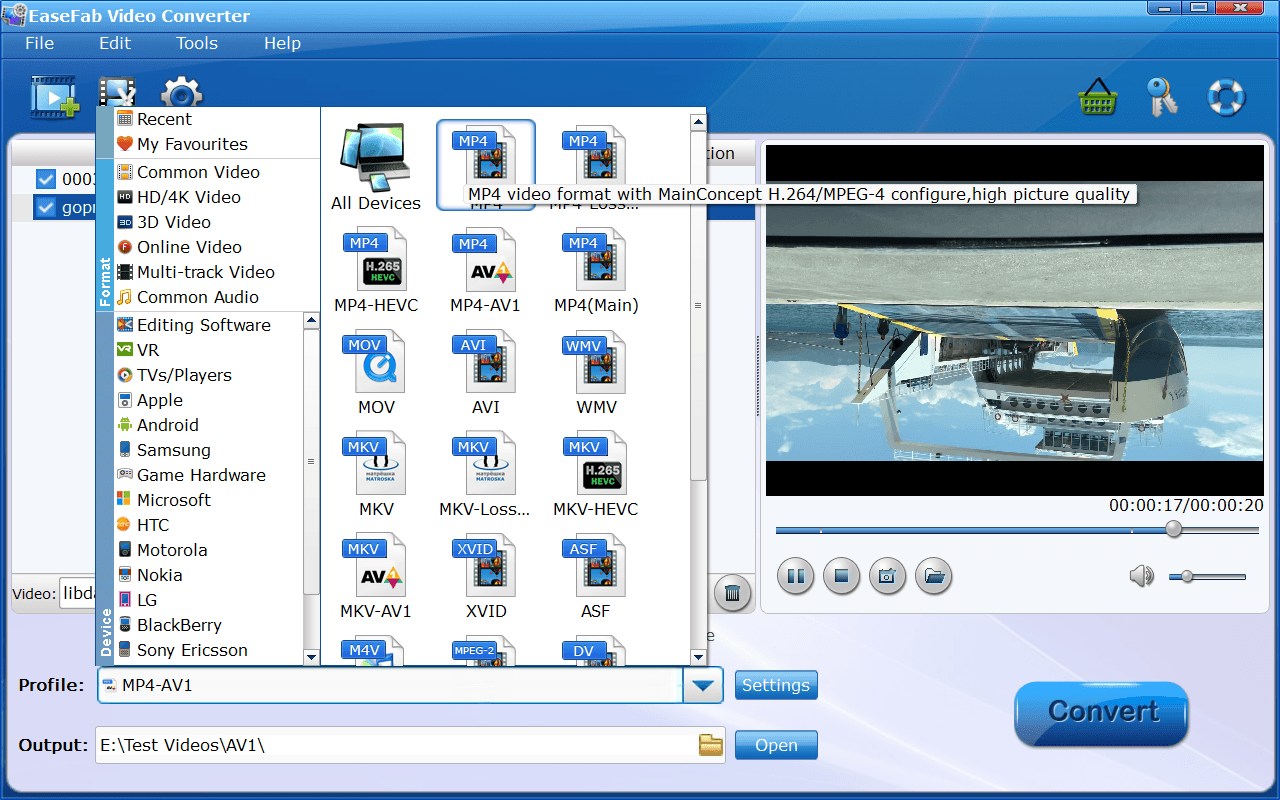
Step 2. Click "Profile" bar and move muse cursor to "Common Video" category, then select "MP4 (codec: h.264)" as the output format. This program provides many other output video formats encoded H.264 codec, such as MOV, MKV, M4V, etc, you can feel free to choose according to your own needs. You can also choose to convert AV1 to H.265 encoded videos.
Tips: Click "Settings" button next to Profile icon to adjust video/audio parameters to achieve desired output results before changing AV1 to H.264. Click "Edit" button to trim video clips, crop videos, adding watermark, etc.
Step 3. Select an output folder. Hit the "Convert" button to start converting AV1 to H.264.
2. Convert AV1 to H.264 for Free with HandBrake
Handbrake is a free and open-source AV1 to H.264 transcoder that's available for Windows, macOS and Linux. With unmatched codec flexibility, you can convert AV1 videos to H.264, H.265, MPEG-4, VP9 and VP8. It includes updated support for AMD VCN, Intel QSV, and NVIDIA NVENC (supporting both AV1 and HEVC hardware encoding) to accelerate your workflow. More than that, there is a wide range of settings to customize the AV1 video conversion.
If you are seeking a free and safe AV1 to H.264 converter, Handbrake will have the job well done. The only complaint you can have is its interface and all the jargon-filled settings, which can be overwhelming for beginners. In addition, it supports only three output container formats: MP4, MKV, and WebM.
Pros
- Completely free and available for Windows, macOS and Linux.
- An extensive range of settings and options for precise video customization.
Cons
- Only supports MP4, MKV, and WebM containers.
- Very high CPU usage.
- New versions do not support Windows 7 and 8.
Steps to convert AV1 to H.264 using HandBrake
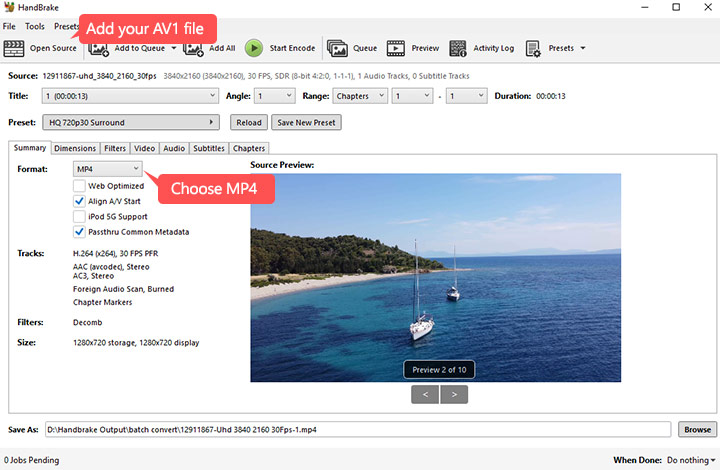
Step 1. Download and install HandBrake from its official site. Open it. Click "Open Source" and select your AV1 video.
Step 2. In "Output Settings", choose "MP4" or "MKV" as the container according to your needs.
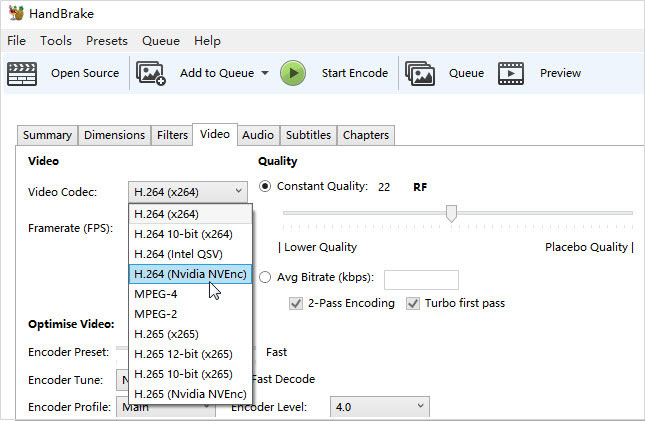
Step 3. Go to the "Video" tab. Set the codec to "H.264 (x264)". Keep other settings as the default for the best balance.
Step 4. Now, edit the output file name in the “Save as” box and click “Browse” button to set the storage position.
Step 5. Finally, click “Start Encode” icon at the top line to start to convert AV1 to H.264 with HandBrake.
3. Convert AV1 to H.264 for Free with FFmpeg
FFmpeg can also be used as an AV1 to H.264 converter but it is best suited for pros and geeks. Available for Windows, macOS and Linux systems, it has multiple rate-control modes to control the quality and file size of videos. However, as a command-line-based tool, FFmpeg does not have a native GUI. This means its real hard for users who want point-and-click simplicity since FFmpeg's command-line syntax can be overwhelming. Overall, this AV1 video converter is ideal for users who are proficient in video coding mechanisms.
Pros
- Powerful to decode, transcode, and encode AV1.
- Support a wide range of video formats, codecs, and containers.
- Completely free.
Cons
- It's not easy for beginners to use and implement.
- The steep learning curve requires more technical knowledge.
- Lacks some advanced editing tools.
Steps to re-encode AV1 to H.264 free using FFmpeg
Step 1. Launch this AV1 converter through the cmd Command Prompt window.
Step 2. Navigate to the directory where your AV1 file is stored using the "cd" command.
Step 3. Type the following command to convert the AV1 file to H.264 MP4:
ffmpeg -i input.av1 -c:v libx264 -preset slow -crf 20 -c:a copy output.mp4
Note: In this command, "input.av1" is the name of your AV1 input file, "libx264" is the video codec for MP4 output, "slow" is the encoding preset, "20" is the constant rate factor (CRF) for video quality, and "copy" is the audio codec for copying the audio stream as is.
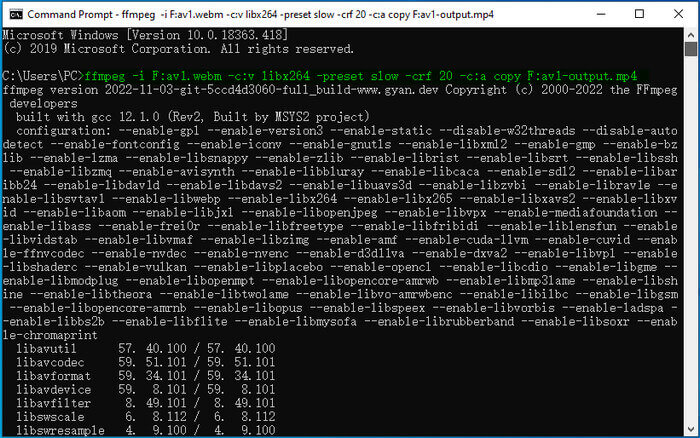
Step 4. Press Enter to execute the command and start the conversion process. Once the conversion is complete, you should have an H.264 MP4 file in the same directory as your original AV1 file.
4. Re-encode AV1 to H.264 for Free with VLC
Many users may not realize that they have got an AV1 to H.264 converter on their PC. In fact, VLC is not just a media player that can play various media files, it can be used a video transcoder tool. VLC fully support AV1 decoding in version 3.0 or newer. So you can use VLC to convert AV1 to H.264, HEVC, and many other formats. And it also offers the ability to adjust the basic video parameters such as codec, aspect ratio, frame rate, resolution, quality, audio channels, sample rate, bitrate, and more.
Though VLC does not support AV1 encoding and it's not a preferred method for those who are discerning about quality, hopefully it can help someone out in a pinch.
Pros
- It's free and open-source.
- Work on all platforms.
- Support the largest library of video and audio codecs. No external codecs required.
Cons
- The conversion interface is less intuitive and somewhat hidden compared to its playback features.
- VLC AV1 converting is not stable and errors may occur during the conversion, for example, the converted AV1 files have no video only audio.
- Output quality can be significantly degraded, with loss of detail and potential artifacts.
Steps to convert AV1 to H.264 with VLC
Step 1. Install VLC from its official website, Open it from your "Start" menu. Do not open a video yet.
Step 2. Click "Media" on the top left. Then, choose "Convert / Save".
Step 3. Click the "Add" button. Pick your AV1 video file. Then, click "Convert / Save" again and choose Convert.
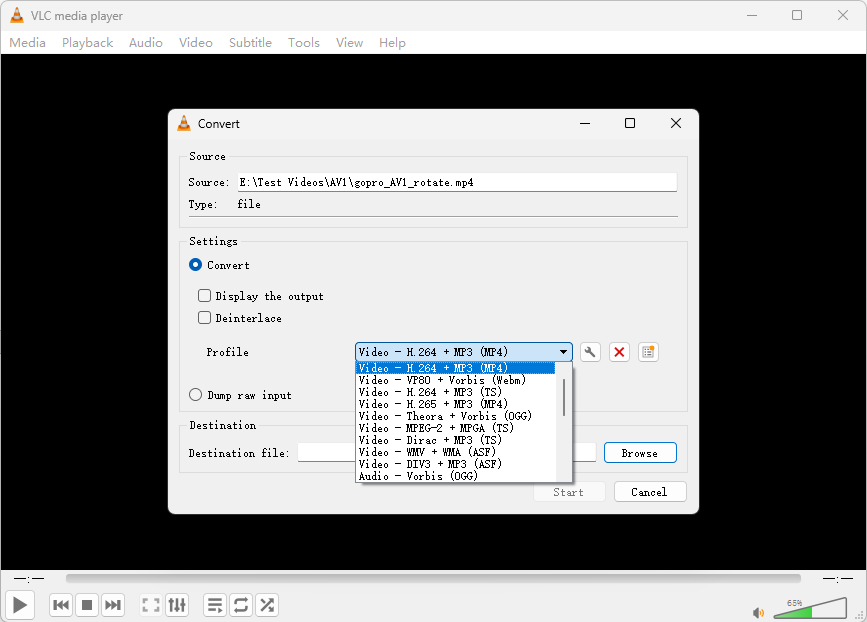
Step 4. Go to "Profile" and select "Video - H.264 + MP3 (MP4)". It sets your output to H.264 format.
Step 5. Hit "Browse". Give your new file a different name. Next, choose where to save it. Click "Start" to begin, and please wait until the blue bar finishes. The time depends on your video length.
5. Transform AV1 Video to H.264 Online
Search online, you will find many online tools which can help convert AV1 videos to H.264. For example, there are sites like convertio.co, convertr.org. You can choose one of them, upload the AV1 videos or other videos you'd like to convert to H.264. Most of these sites will have limits on the file size or length of the uploaded videos.
Online converters are the best choice for users who want to convert a few videos now and then and don't want to install extra AV1 video converter software on computers.
Pros
- Online tools are very convenient and most of them are free.
- You don't need to install extra software.
Cons
- There are limits on the file size, video length, etc.
- The conversion performance is highly relied on the internet speed, e.g., uploading 4K video can be very slow.
- You have no control over the output video.
Steps to convert AV1 to H.264 online using convertr.org
Step 1. Visit https://convertr.org/en/encode/av1-to-h264 in your browser.
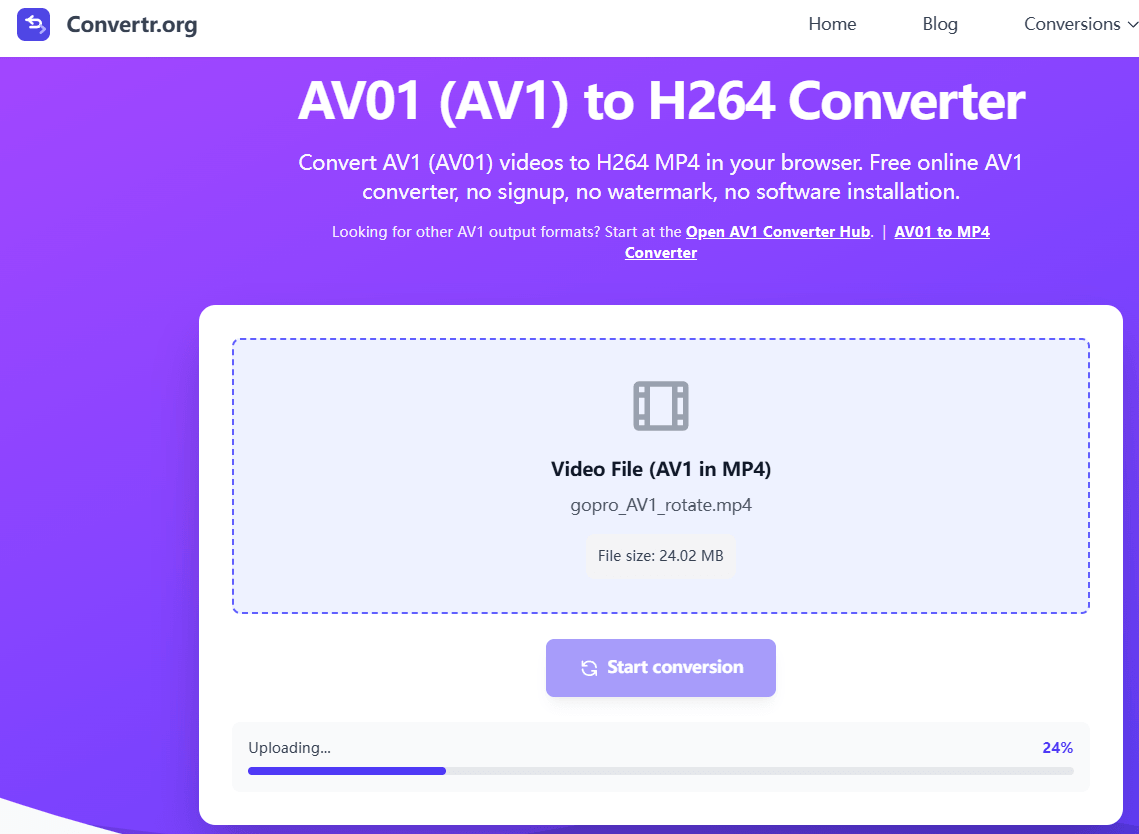
Step 2. Drop your AV1 MP4 files to "Video File" area. You can also click to upload.
Step 3. Hit "Start Conversion" to begin uploading AV1 files, once uploading completed, it will start converting your AV1 MP4 to H.264 MP4. As you see, the uploading and conversion speed can be time-consuming and will largely be affected by your network conditions.
FAQs about AV1 and H.264
1. What is AV1?
AV1 (AO media video 1) is a modern video codec developed by the Alliance for open media, a consortium of major tech companies including Google, Apple, and Microsoft. AV1 is designed to offer superior compression efficiency and high video quality while being open-source and royalty-free. This codec supports high-definition (HD) and ultra-high-definition (UHD) video, making it a great choice for high-quality streaming.
2. Is AV1 better than H.264?
AV1 delivers superior compression efficiency, reducing bandwidth use by up to 50% compared to H. 264, making it ideal for 4K and beyond. However, H. 264 remains the most widely supported codec, offering faster encoding and universal compatibility.
3. Will AV1 replace H.264 completely?
Not anytime soon. H.264 continues to dominate due to its compatibility with legacy hardware and streaming stacks. AV1 adoption is growing, but a full replacement will take years as hardware decoding support matures and real-time encoding becomes faster.
4. Why is AV1 encoding still slow compared to H.264?
AV1 is more computationally intensive. While newer encoders like SVT-AV1 and hardware acceleration are improving speed, real-time encoding still favors H.264 or H.265, especially in live streaming setups or edge-based delivery.


 Sales Team: