How to Rip Blu-ray to ISO Free on Windows and Mac [2026 Update]


Summary: Ripping a Blu-ray to an ISO file creates a 1:1 backup of the disk, including its menus and special features. For the commercial Blu-ray discs with copy protection, you can adopt the dedicated ripping software like EaseFab Blu-ray Ripper to simplify the process on Windows and Mac. Alternatively, a combination of MakeMKV and ImgBurn offers a zero-cost workaround for free creating ISO from some commercial Blu-ray discs.
Physical Blu-ray discs are frail and could be easy to go unplayable and damaged. Therefore, more and more people are looking for ways to make a digital copy of their discs for easy access and long-term preservation. Among the backup options, copying Blu-ray to ISO is a smart move since the ISO image file can preserve all content in a single, convenient disk image, protect your media, saves space, and makes playback and sharing easier.
But how to make an ISO image from a Blu-ray, especially when the Blu-ray are protected? If you've no idea about this, you've come to the right place. Here we will introduce 2 reliable ways to convert protected Blu-rays to ISO file that you can try with confidence. Keep on reading to find the best fit for your specific needs.
Table of contents
Method 1. Rip Protected Blu-rays to ISO with EaseFab Blu-ray Ripper
EaseFab Blu-ray Ripper is a professional tool that can convert any Blu-ray to an ISO file without quality loss. It automatically detects and removes common Blu-ray protections, including AACS, BD+, BD-J, region codes, country codes, and more, ensuring smooth backup of commercial 2D, 3D and UHD 4K Blu-ray discs. Besides creating functional 1:1 backup, this program also provides lots of other useful features:
- Remove popular Blu-ray copy protection from old or newly-released discs.
- 4 Blu-ray backup modes: 1:1 clone Blu-ray to ISO image, BDMV folder, and extract full or main title to single M2TS or MKV file without quality loss.
- Convert & compress Blu-ray to MP4, MKV, H.264, H.265, MOV, TVs, NAS, Plex, mobile and 200+ optimized device preset profiles.
- Offer customized options, such as selecting audio tracks and subtitles.
- Utilize the NVIDIA AI Enhancer to upgrade Blu-ray video from SDR to HDR10.
- Multi-task mode and GPU acceleration ensure fast performance.
- Trim and crop video, set brightness, and add watermarks via a built-in editor.
Now let's check how to copy Blu-ray to ISO on Windows 11/10/macOS within 3 steps with EaseFab Blu-ray Ripper:
Step 1. Load Your Blu-ray Disc
Insert the Blu-ray disc to the BD drive and then click the Load Disc button to have Blu-ray movies uploaded to EaseFab Blu-ray Ripper. A few seconds later, the full title list of Blu-ray with the auto-checked main title are presented.
Step 2. Set a Destination Folder
Just below Profile is Output, you can click the small yellow Folder icon to change the location where you want to store the converted Blu-ray ISO image file.
Note: You should know that the ISO image created from a Blu-ray is almost as big as the disc, typically ranging from 25 GB to 50 GB. Make sure the hard drive on your Mac or PC has enough free space for the ISO image.
Step 3. Start to Clone Blu-ray to ISO Fast
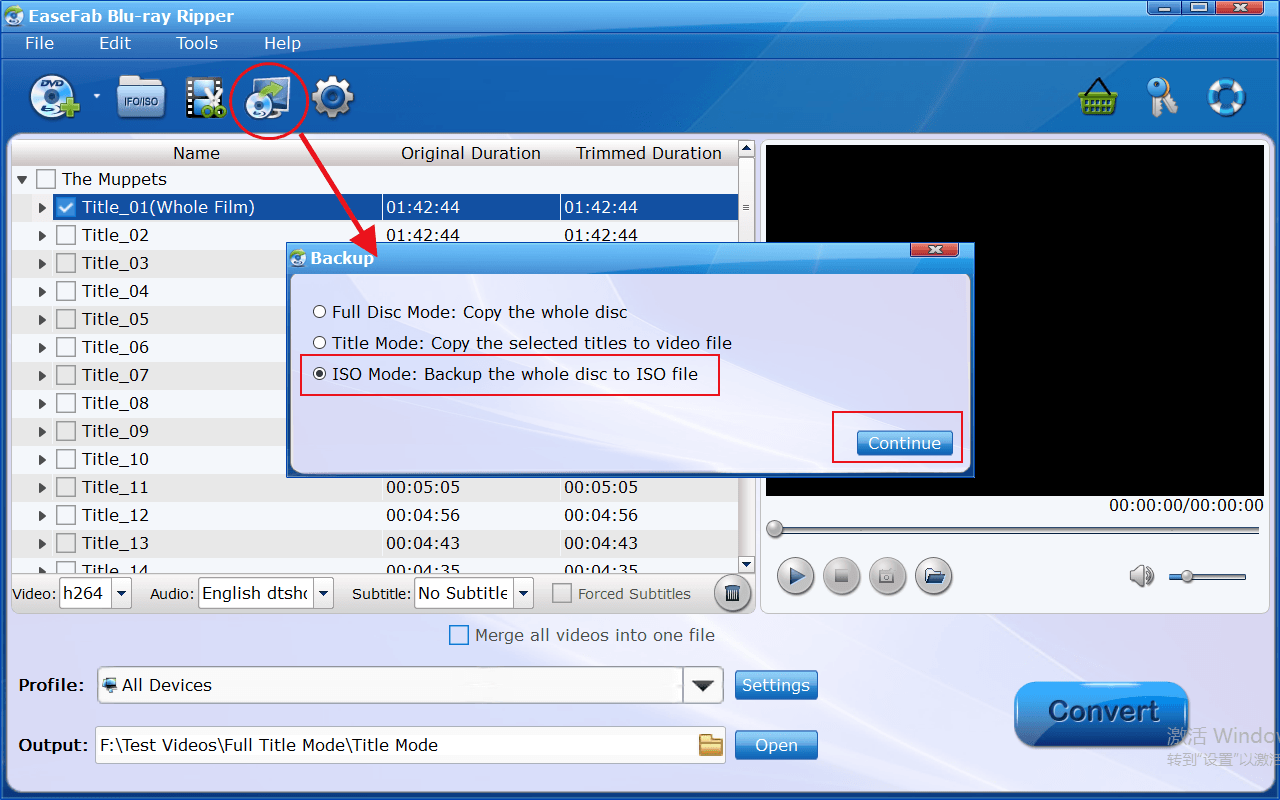
At the top of the Main Window, click the Disc Backup button to open the Backup window, select ISO Mode: Backup the whole disc to ISO file and click Continue button. This software will immediately start ripping Blu-ray to ISO image file at lightning speed with all intact content and data.
Tips: EaseFab Blu-ray Ripper can also be used to convert DVD discs to ISO image files. And you can further use it to convert ISO image file to MP4, AVI, WMV, MOV for easy playback on iPhone, iPad, Android or other mobile devices wherever you want.
Method 2. Create ISO from Blu-ray Free with MakeMKV and ImgBurn
If the Blu-ray disc is homemade or burned, then you can adopt ImgBurn for help. ImgBurn is a lightweight and free tool that can convert unprotected Blu-ray disc to ISO. It supports multiple image formats including BIN, IMG, CDI, and PDI, and offers five functional modes—Read, Build, Write, Verify, and Discovery. With its minimal interface and solid reliability, ImgBurn remains one of the most accessible choices for basic disc imaging and burning tasks on Windows.
What if you want to rip protected Blu-ray to ISO with ImgBurn? To do this, you need to add an immediate step. You can firstly use MakeMKV to bypass the copy protection and create a raw folder from the commercial Blu-ray discs. After that, you can use ImgBurn to package the resulting files into an ISO image.
The combination of MakeMKV and ImgBurn is suitable for users on a strict budget or those who only need to archive discs occasionally. MakeMKV is free in its public Beta period while ImgBurn is also free to use. Note that the fragmented two-step workflow requires manual file management and it's only available on Windows-based computers.
Below are detailed steps on how to decrypt disc with MakeMKV and then use ImgBurn to create a standard, mountable disc image from the raw folders.
Step 1. Decrypt and rip Blu-ray Disc to BDMV folder with MakeMKV
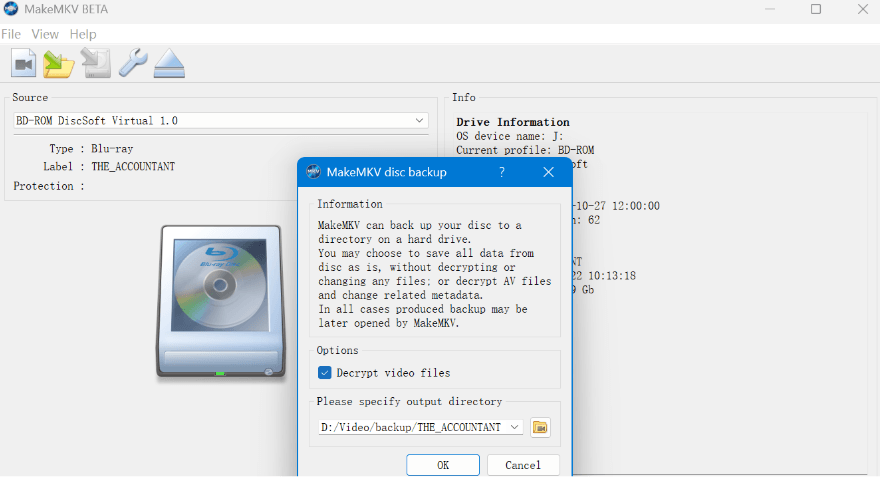
To decrypt and copy a Blu-ray to your computer as a playable BDMV folder (rather than individual MKV files), use the native "Backup" feature in MakeMKV. Make sure the "Decrypt Video Files" option is enabled in the backup settings so the resulting folder is free of copy protections.
Below are the step-by-step instructions.
1. Insert the Blu-ray disc into your BD drive and launch MakeMKV. Wait a few seconds for the software to read the disc.
2. In the toolbar at the top of the screen, click the Backup icon ( It looks like a yellow folder with a green arrow pointing into it). A pop-up window will appear. Ensure that the Decrypt video files checkbox is firmly checked. If you skip this, the resulting data will remain encrypted and unplayable.
3. Select the destination folder where you want your decrypted files to be saved.
4. Click OK. MakeMKV will then copy the entire raw disc structure (BDMV and CERTIFICATE folders) to your specified directory while stripping away the AACS/BD+ encryption.
Step 2. Create ISO image file from the Raw folder with ImgBurn
Important: Your source folder must contain both the BDMV and CERTIFICATE folders at the root level for the disc structure to be valid.
1. Launch the application and select "Create image file from files/folders" from the main menu.
2. Click the Browse for a folder icon (the yellow folder with a magnifying glass) in the "Source" section and select the parent folder containing your BDMV and CERTIFICATE folders.
3. Click the Browse for a file icon in the "Destination" section to choose where you want to save the final .iso file.
4. Switch to the Options tab on the right side of the window:
- Set File System to UDF
- Set UDF Revision to 2.50 (this is mandatory for Blu-ray discs)
Note: Standard ISO9660 or UDF 1.02 will not work for Blu-ray.
5. Switch to the Labels tab and type a name for your ISO in the UDF text box.
6. Click the large Build button (the icon depicting a folder, an arrow, and a disc/hard drive) to start generating your ISO image.
FAQs about Ripping Blu-ray to ISO
1. Is there a free way to rip Blu-ray to ISO?
There is no all-in-one free tool that can decrypt and create an ISO simultaneously. In technical communities like Reddit's r/DataHoarder, the standard advice for a zero-cost workaround is combining two specific utilities - MakeMKV and ImgBurn. You can firstly use MakeMKV to decrypt the disc to a folder, and then use ImgBurn to build that folder into an ISO file.
2. How to play ISO files directly on my computer?
You can play ISO files by mounting them with a virtual drive (using built-in tools on Windows 10/11 or third-party software) or open them with compatible media players like VLC. If your system or player doesn't support ISO playback, you can convert the file to a format like MKV with EaseFab Blu-ray Ripper for easier viewing on any device.
3. Can a Blu-ray ISO file be played on a Blu-ray player?
No, a standard standalone Blu-ray player cannot read or play a Blu-ray ISO file. An ISO is a digital "disk image" archive. To use a traditional player, you must burn the ISO onto a physical Blu-ray disc (BD-R/RE) using authoring software. Alternatively, you can play the ISO directly on a computer or streaming device using specific methods.
4. Can I clone Blu-ray to ISO on Linux?
Yes, you can clone a Blu-ray disc to an ISO on Linux. Because commercial Blu-rays use strict copy protections (like AACS), the best free approach is to use MakeMKV for decryption and backup, followed by mkisofs to build the ISO.
Conclusion
There is no built-in apps on Windows or Mac that can help you make ISO image from protected Blu-rays. This article has highlighted two reliable ways for different needs and expertise levels. The free MakeMKV and ImgBurn method serves as a functional workaround for budget users, but it cannot compress large BD50 data to fit BD25 discs and ImgBurn is Windows-only. For users who needs a simple once-and-for-all solution, EaseFab Blu-ray Ripper will be your best choice due to its Blu-ray decrypting capacity, advanced features and cross-platform compatibility.


 Sales Team: